Cloudmersive Document AI is here, and it’s ready to revolutionize your document processing workflows.
Document AI empowers enterprises to intelligently summarize or categorize document contents, retrieve form responses, pull data from tables, and extract fields of data from invoices, receipts, tax forms, and other standard documents.
Automatic Document Routing by Type
Automated document processing workflows (especially those which begin with a file upload portal) are typically limited by input document categories. The reason is simply that it’s difficult to programmatically route unique categories of documents into category-specific processing workflows without relying tenuously on special values or indicators.
To put this idea in context, imagine we’re tasked with designing an Accounts Payable file upload workflow to process invoices, receipts, purchase orders, credit memos, and other important enterprise financial documents. If all these unique document categories are to be uploaded through the same portal, and we want to eventually process those documents in unique ways relevant to each category, how are we going to accurately and consistently distinguish between them?
In an ideal world, invoice documents would be labeled with the word “Invoice” (or some other special indicator) somewhere in the title or body of text, and so would receipts, purchase orders, and so on. In reality, however, this would be extremely difficult to enforce given the wide range of folks we might expect to make use of our upload portal.
Consistently making accurate document classifications requires knowledge and experience from reviewing hundreds, thousands, or even tens of thousands of documents in the same category. If that’s starting to sound like a job for AI, we’re on the right track!
Routing Documents with Cloudmersive Document AI
Cloudmersive customers can intelligently identify document categories with human-level accuracy thanks to the Document Classification action in the Document AI API library. That means flows and applications using Document AI can distinguish between unique document types at the point of upload, which allows for simple category-specific document processing.
In this article, we’ll walk through an example flow in Power Automate which takes advantage of the Document Classification action from the recently launched Document AI Connector to route several test documents down unique processing paths based on their classification outcome. We’ll theme this example around the Accounts Payable scenario we outlined earlier to capture one powerful, real-world use case in action.
Routing Documents in Power Automate
We’ll now get started with our example flow.
This flow will only consist of 3 basic steps:
- A file upload step which allows users to upload any document from their file system
- A Document Classification step which returns the document category
- A
Switch Case which takes unique actions on documents depending on the category returned in the Document Classification step
Creating a test flow with a single file input
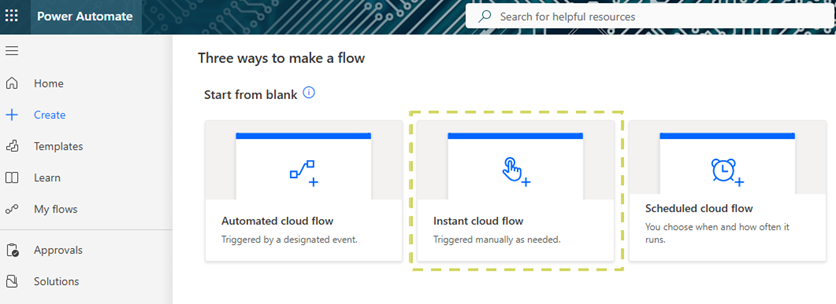
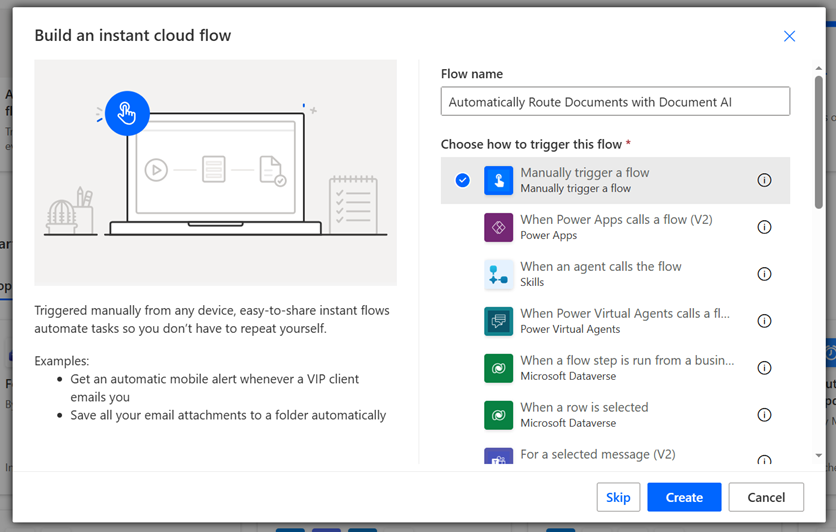
We’ll begin by initiating an Instant Cloud Flow with a manual trigger. This is the easiest way to mimic a file upload portal with unspecific inputs.
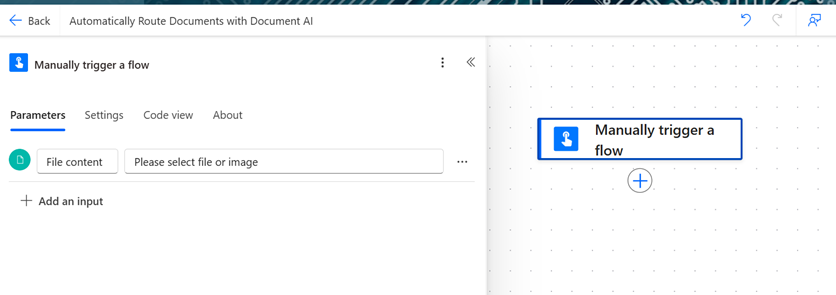
In the flow designer, we’ll open the Manually trigger a flow action and create a File input. This will allow us to pass in any document from our file system at runtime.
Incorporating the Extract Classification action
We’ll now add a new action and locate the Document AI connector in the Power Automate library. If we haven’t created a connection for this action yet, we’ll need to create one with our Cloudmersive API key before proceeding to the actions list.
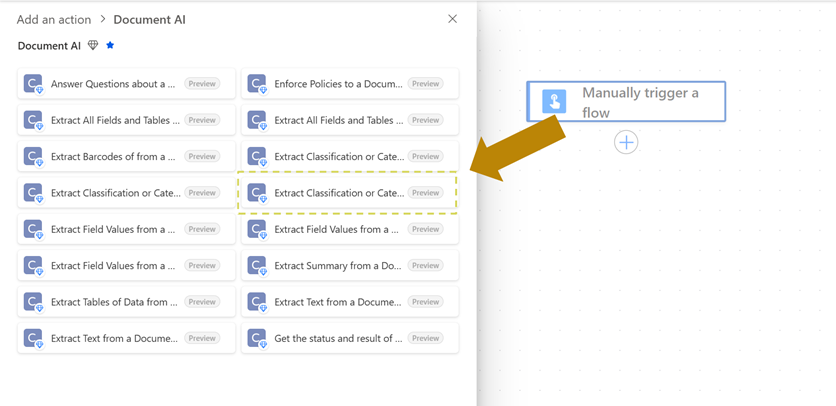
Once we reach the Document AI actions list, we’ll select the action titled Extract Classification or Category from a Document using Advanced AI (which can be found fourth down on the righthand side in the new flow designer).
We’ll now fill the Extract Classification parameters. In this article, we’ll focus exclusively on the Body/Categories field, which (along with Body/InputFile) is the only mandatory parameter for this action. For additional information about the remaining parameters, please review Document AI swagger page or alternatively read our article about the Extract Classification action.
As shown in the below example, we’ll ask our Extract Classification action to classify documents in 3 categories: invoices, receipts, and other. Each Categoryname is accompanied by a concise Categorydescription to provide the model with additional context during the classification process.
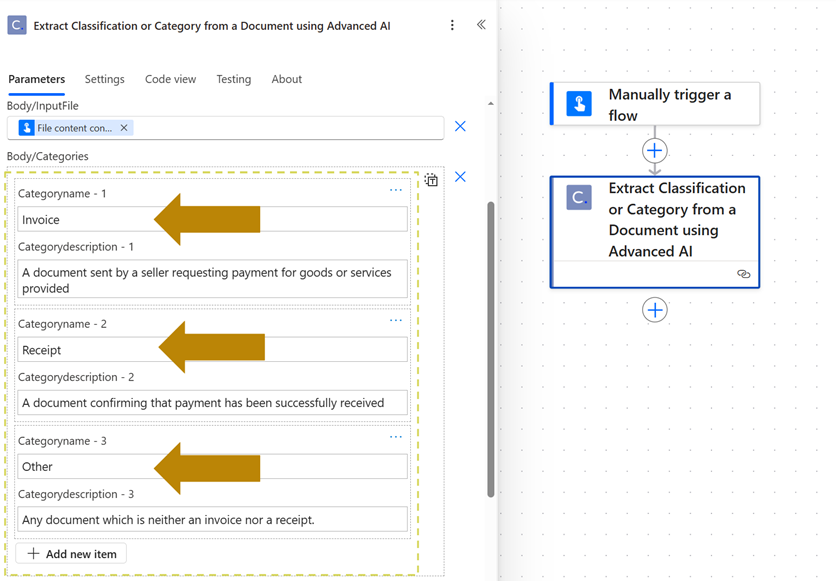
The Extract Classification action will only return classifications using the exact category names we tell it to. This guarantees a consistent response across all our flow runs.
Passing the classification results to a Switch control
We’ll now implement our Switch action.
To build our Switch Case, we’ll use the body/DocumentCategoryResult dynamic content from the Extract Classification API response. This will route our documents into relevant flow actions based on their category.
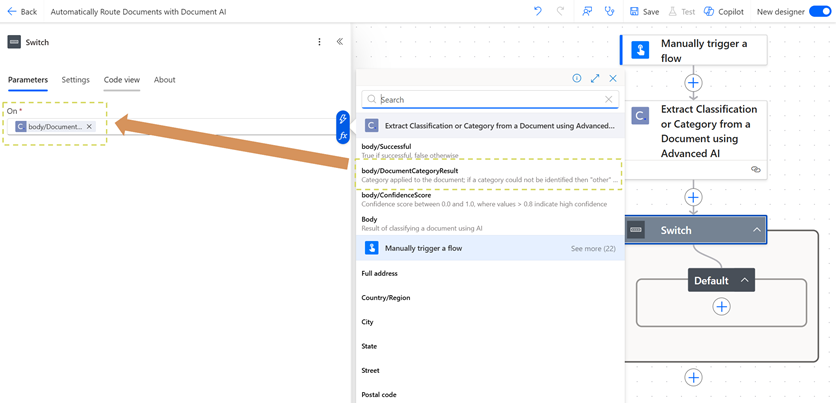
In our first switch case, we’ll target the “Invoice” category.
When invoice documents are identified, we’ll ask our flow to extract the Invoice Number and Invoice Total from those documents using the Advanced Field Extraction (shown as: Extract Field Values from a Document using Advanced AI) action from the Document AI connector.
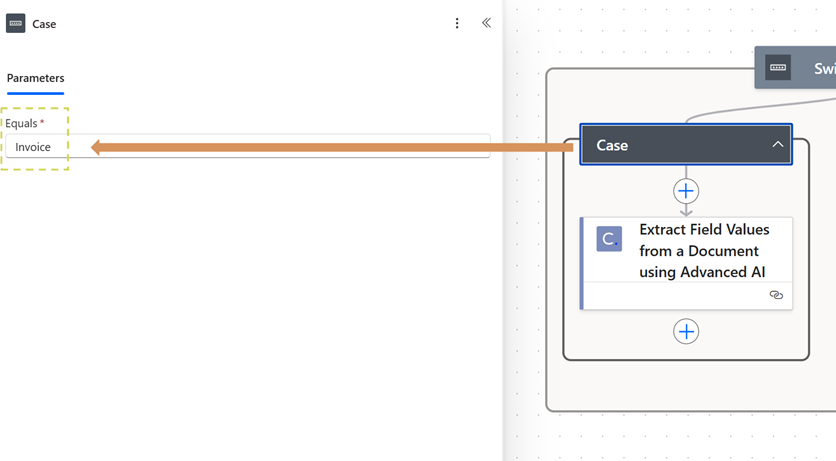
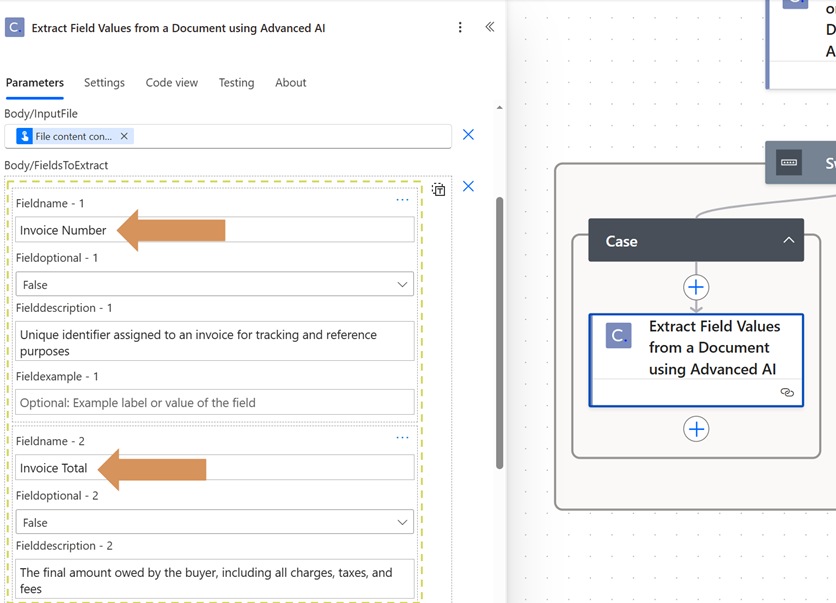
In our second switch case, we’ll target the “Receipt” category.
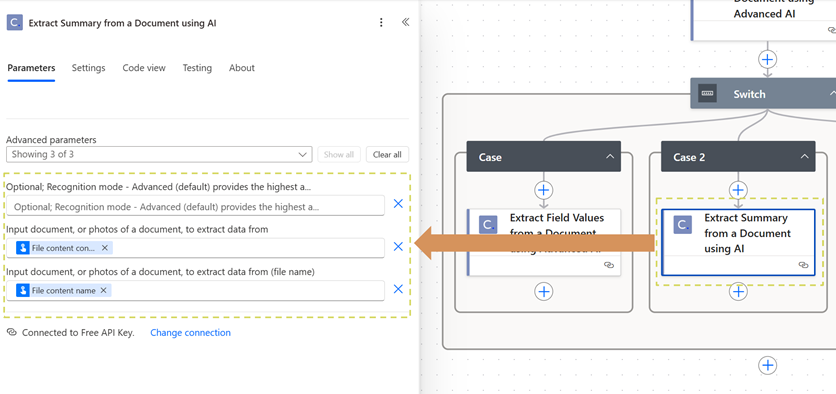
When receipt documents are identified, we’ll ask our flow to extract a brief, descriptive document summary from those documents using the Document Summarization (shown as: Extract Summary from a Document using AI) action from the Document AI connector.
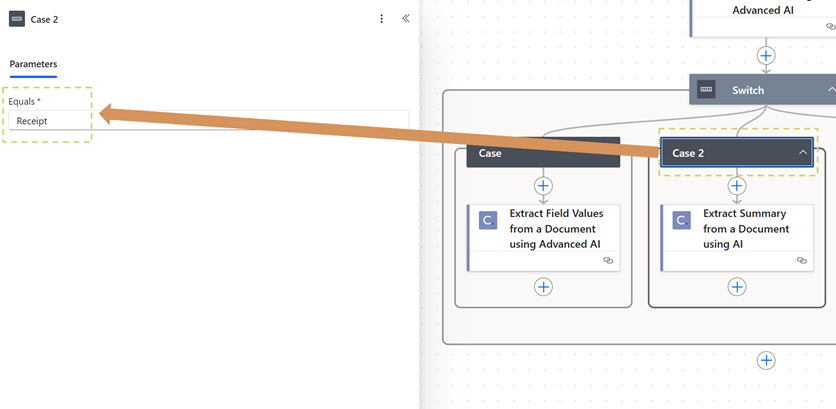
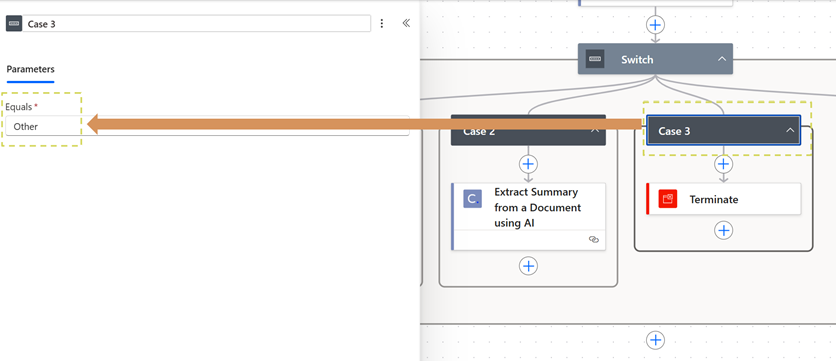
In our final switch case, we’ll target the “Other” category.
When documents are identified as “Other”, it means an unsupported document was uploaded to our workflow and the workflow should not continue. Thus, we’ll ask our flow to Terminate and return an error message in this case.
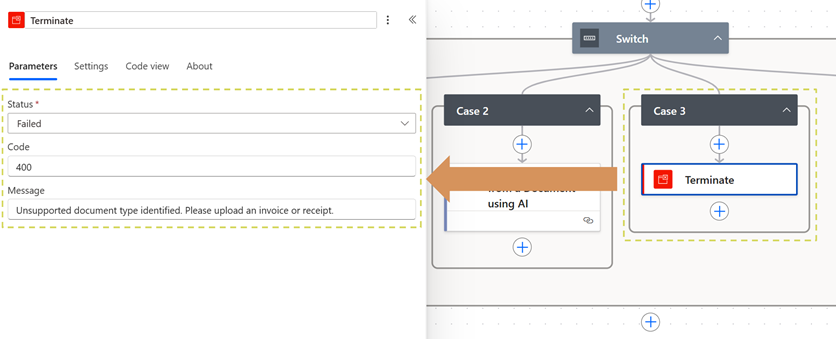
Testing our flow with example documents
Now that we’ve completed each step of our flow, we’ll run tests with 3 separate documents: an invoice, a receipt, and a tax form (which falls into the “Other” category).
We’ll begin with our invoice document.
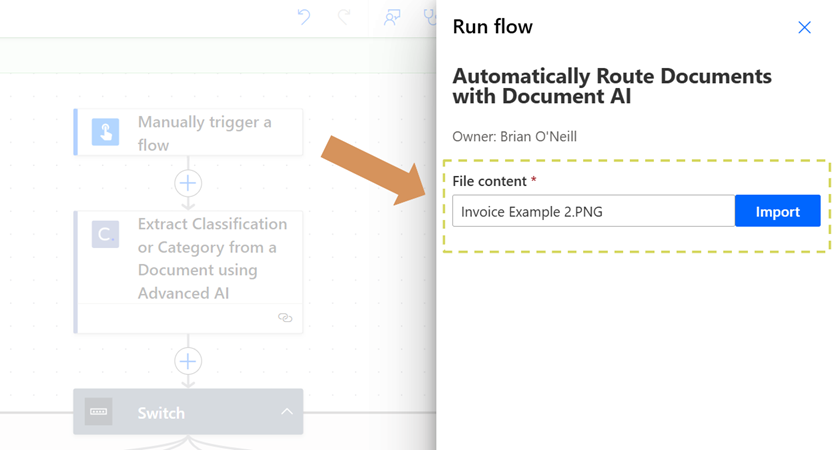
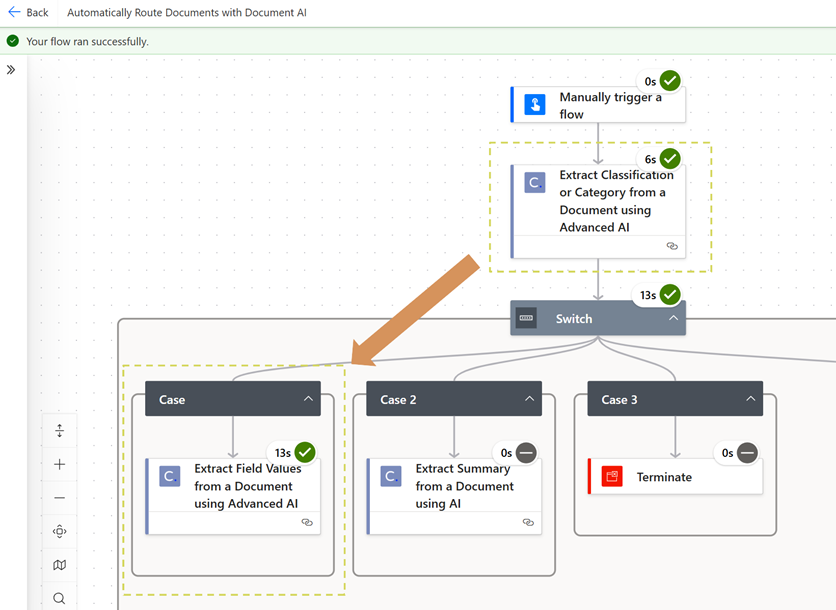
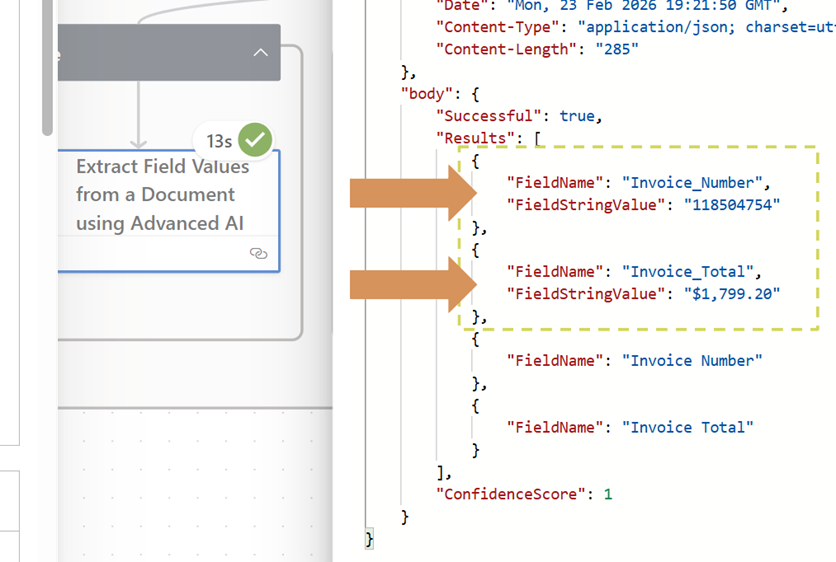
As we can see above, our invoice test document successfully triggered our first Switch Case, and the Extract Field Values action returned the Invoice Number and Invoice Total values we were targeting.
We’ll now run a test with our receipt document.
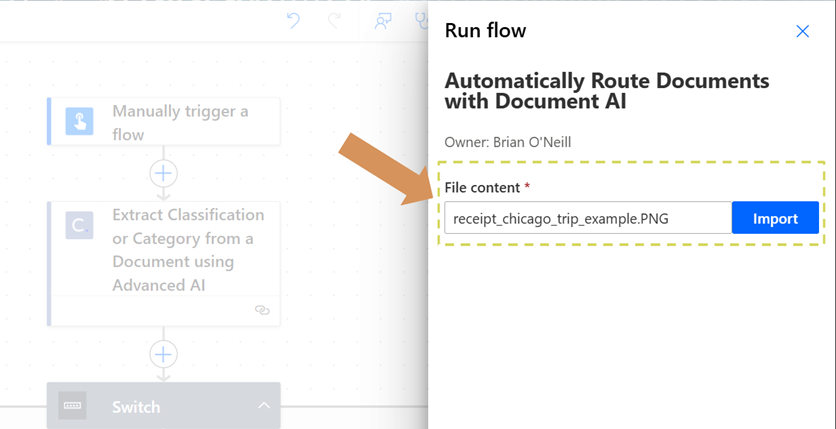
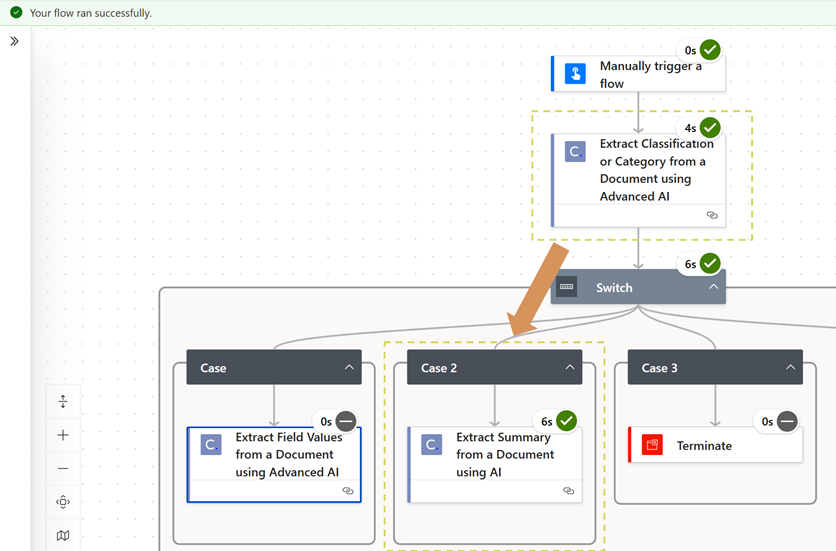
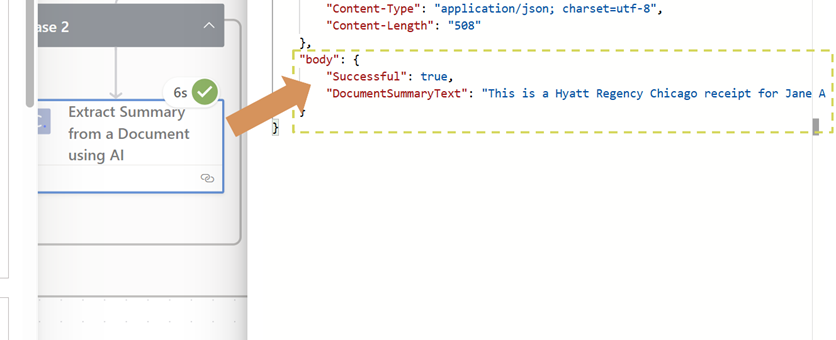
As we can see, our receipt test document successfully triggered our second Switch Case, and the Extract Summary action returned a detailed text summary (this is cut off in the image due to screen size constraints).
Finally, we’ll run a test with our unsupported document type (a 1040 tax form).
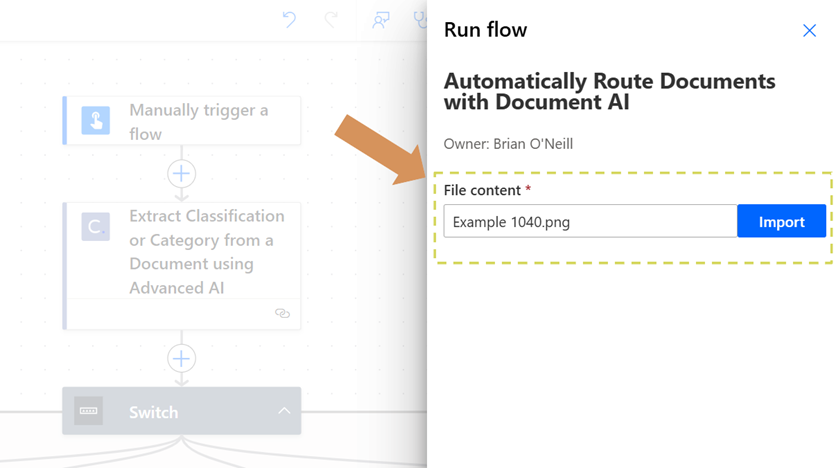
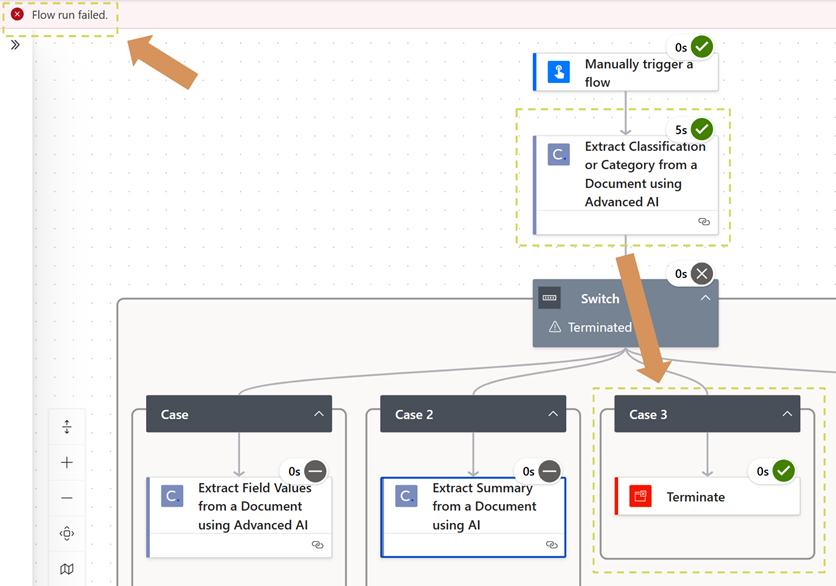
As we can see, our unsupported document was correctly routed to Switch Case 3, which terminated our flow and caused it to fail.
We’ve shown three category examples here for the sake of simplicity and readability, but we could easily expand this use-case to involve dozens of unique document categories at once. Our only constraint might be the size of our Switch Case in the flow designer!
Conclusion
In this article, we learned how to automatically route documents by type using the Document AI connector in Power Automate. We implemented the Extract Classification action to trigger invoice, receipt, or “other” Switch Case actions based on the returned DocumentCategoryResult, such as extracting fields from the invoice or generating a receipt summary.
Including Document AI in Power Automate instantly improves our ability to process and validate our documents. With Document AI, we can easily make our flows more flexible by allowing them to accept a much wider range of file input categories at runtime without accidentally processing files incorrectly.
For expert advice on using the Cloudmersive Document AI API in Power Automate, please reach out to a Cloudmersive representative.



 Technical Articles
 Virus Scan APIs
 Content Disarm and Reconstruction APIs
 Spam Detection APIs
 Document Conversion & Processing APIs
 Document AI APIs
 Natural Language Processing (NLP) APIs
 Optical Character Recognition (OCR) APIs
 Image and Face Recognition and Processing APIs