
|
| How to Extract Document Summaries using Document AI in Power Automate |
| 12/3/2025 - Brian O'Neill |
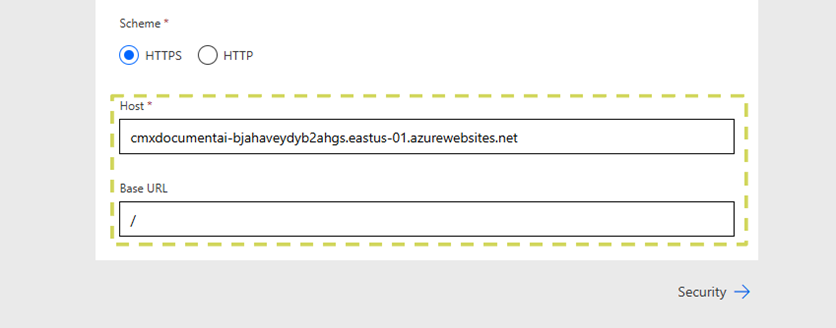
Cloudmersive Document AI is here, and it’s ready to revolutionize your document processing workflows. Document AI empowers enterprises to intelligently summarize or categorize document contents, retrieve form responses, pull data from tables, and extract fields of data from invoices, receipts, tax forms, and other standard documents. Cloudmersive Document AI Summarization in Power AutomateThe Document AI API can be imported to Power Automate as a Custom Connector, and from there it can be plugged into any new or existing document processing workflow with ease. In this article, we walk through an example Power Automate flow which takes advantage of the Document AI API’s document summarization capabilities to generate a detailed natural-language summary of an Invoice document’s contents. This extremely simple flow allows us to prepare accurate document summaries for flow stakeholders, which is useful in approval workflows (among myriad other flow types). Uploading a Custom Document AI Connector to Power AutomateBefore we begin walking through our example AI document summarization workflow in Power Automate, we’ll first address that we’re using the Document AI API as a custom connector in this case. Uploading any Cloudmersive API to Power Automate as a custom connector is as simple as 1) uploading the API spec to the power platform via JSON file or URL and 2) setting a host endpoint and base path in the General information tab of the custom connector editor.
If we’ve deployed the Document AI API to a private or managed instance endpoint, we can set that endpoint as the host in our custom connector to take full advantage of our infrastructure in Power Automate. Extracting an AI-Generated Document Summary in a Power Automate FlowOnce we’ve created our Document AI custom connector, we can begin creating our AI document summarization flow. In this article, we’ll build an example
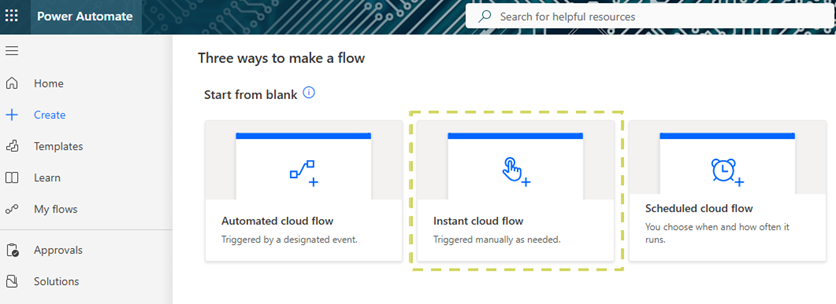
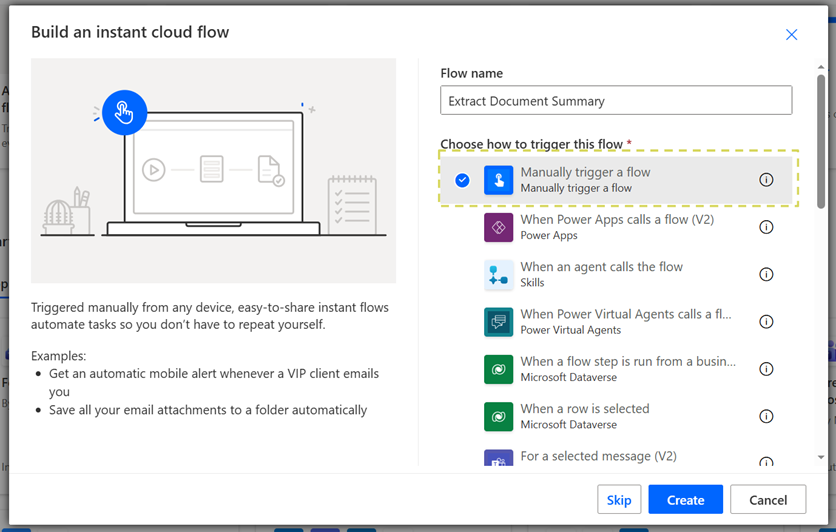
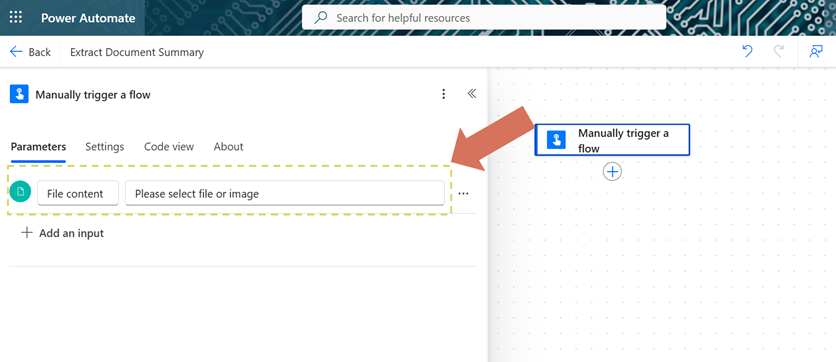
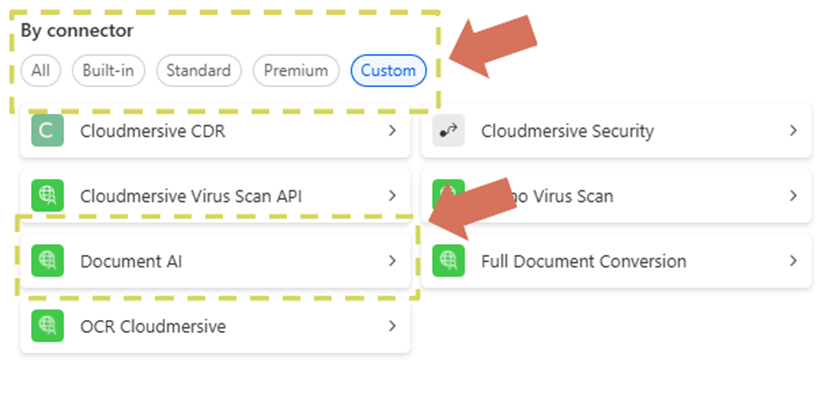
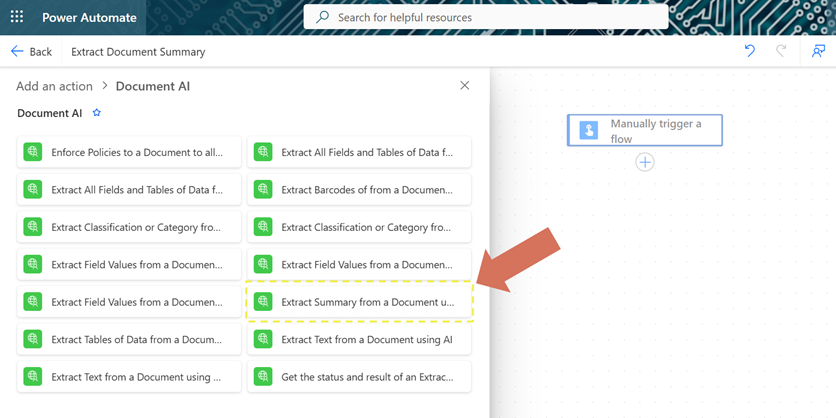
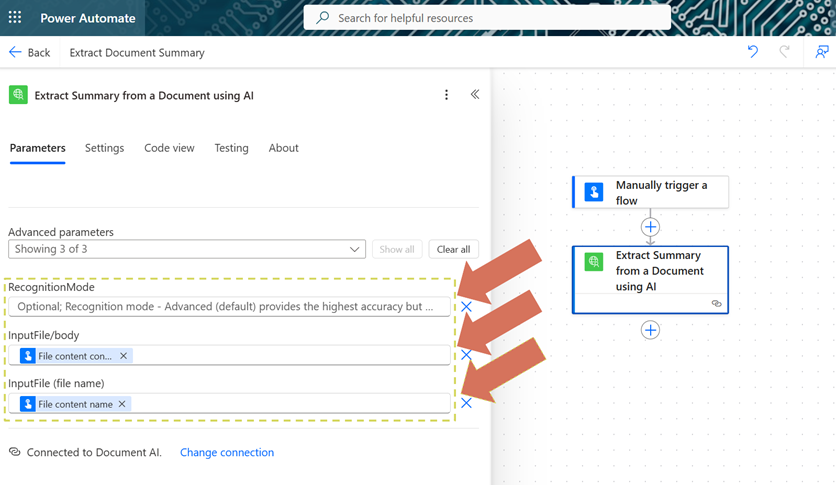
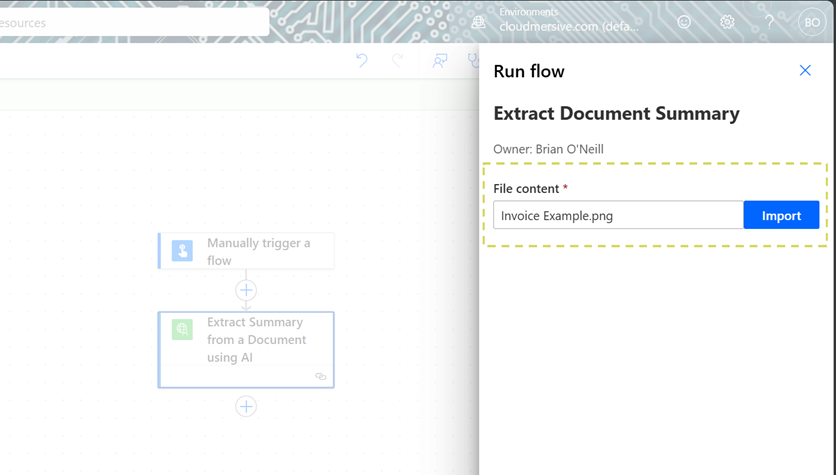
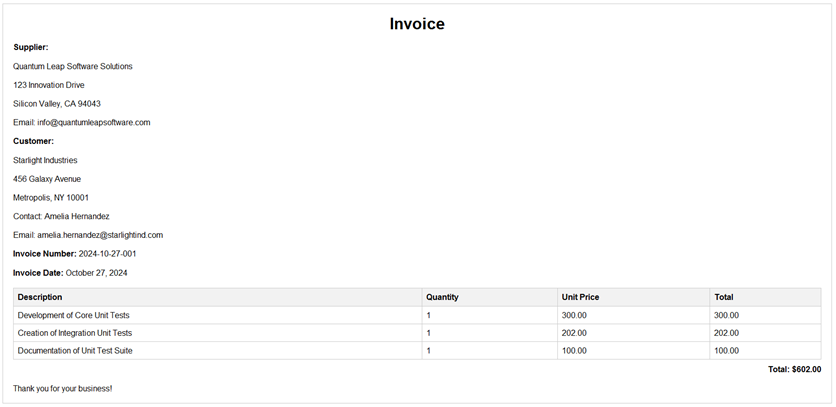
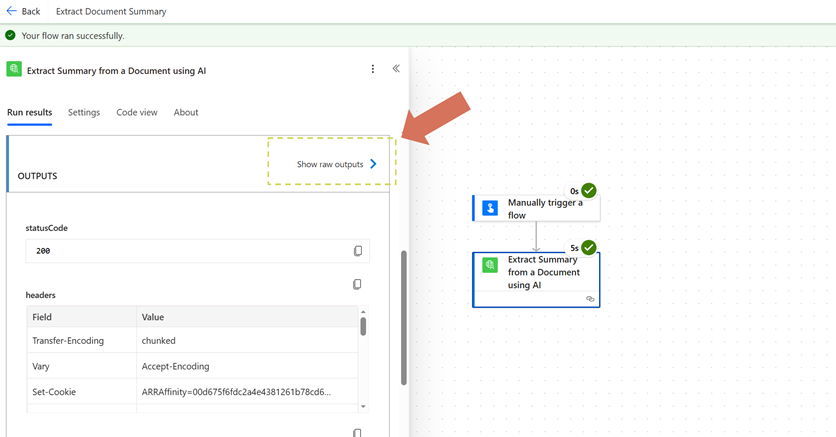
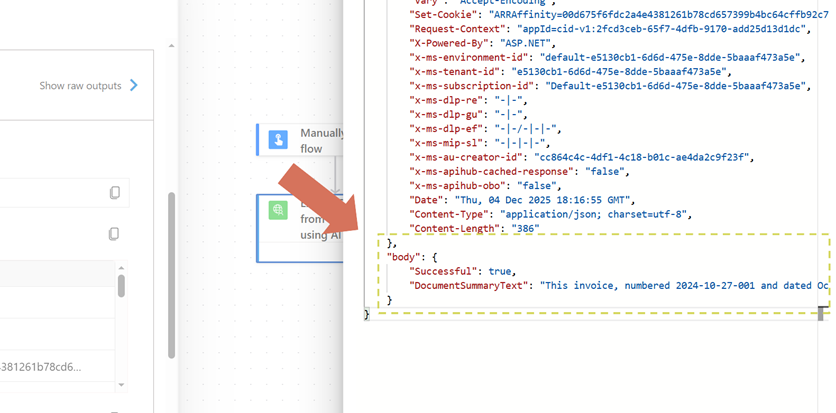
At the outset, we’ll open our Next, we’ll add a new action and navigate to the From the actions list, we’ll select the action titled Now we’ll configure our We don’t have much work to do here. First, we’ll simply pass in our input file bytes and file name from our manual trigger step; after that, we’ll optionally select a At this point, we’ll save and test our flow. We’ll run our first test with the following PNG image of an invoice: When our first test finishes running, we’ll navigate to the
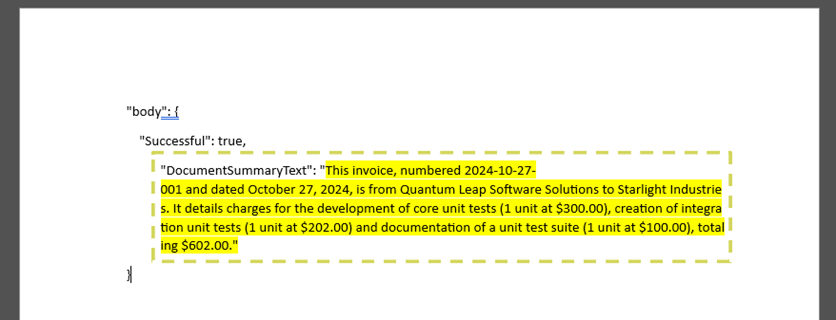
It’s difficult to view the entire summary in the output side bar, so we’ll copy this output to a text editor and take a closer look.
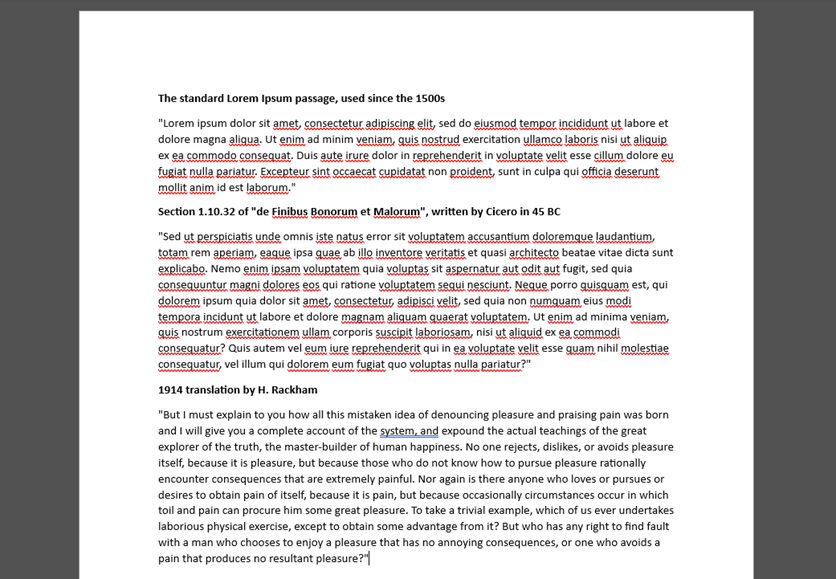
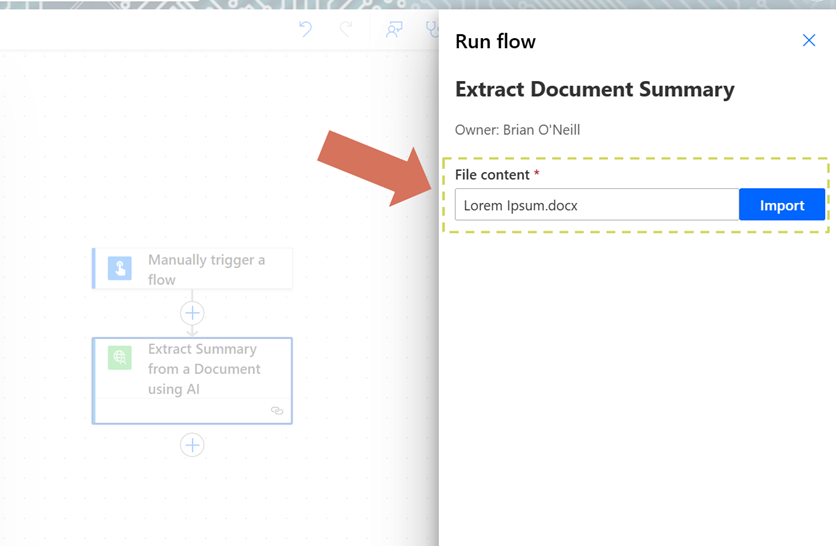
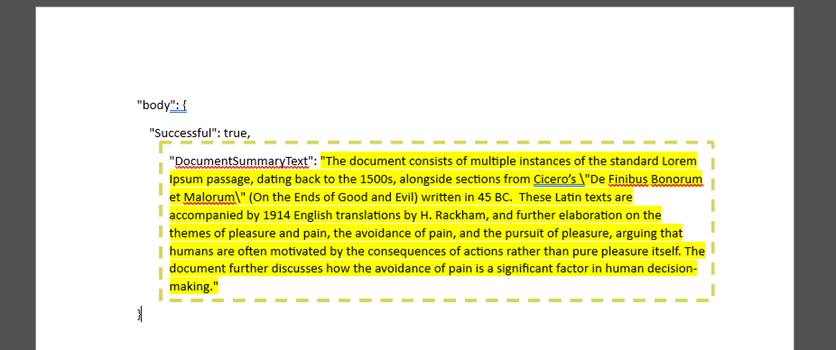
If we review the For a quick comparison, we’ll run one additional test with a completely different document. This document will be a Microsoft Word DOCX file containing some passages of Lorem Ipsum Latin text and their corresponding English translations. We’ll once again copy the output from this response into a text editor so we can read it more easily. If we review this summary alongside the example Lorem Ipsum document, we’ll once again be able to confirm that the summary is accurate. The summary correctly indicates that our Latin text is accompanied by English translations, and it summarizes the English text so we can get the gist of what the translation means. Creating summaries for these two unique document types shows that we can use this document summarization action for a wide range of document types. This can be immensely useful in a variety of document processing workflows. ConclusionIn this article, we learned how to easily extract fields and tables from a receipt using the Document AI Including Document AI in our Power Automate flows immediately empowers our document processing capabilities. We can easily extract and subsequently share or store the data we need from unique document types without knowing anything about the documents ahead of time. For expert advice on using the Cloudmersive Document AI API in Power Automate, please reach out to a Cloudmersive representative. |
Sign Up Now or 

 Technical Articles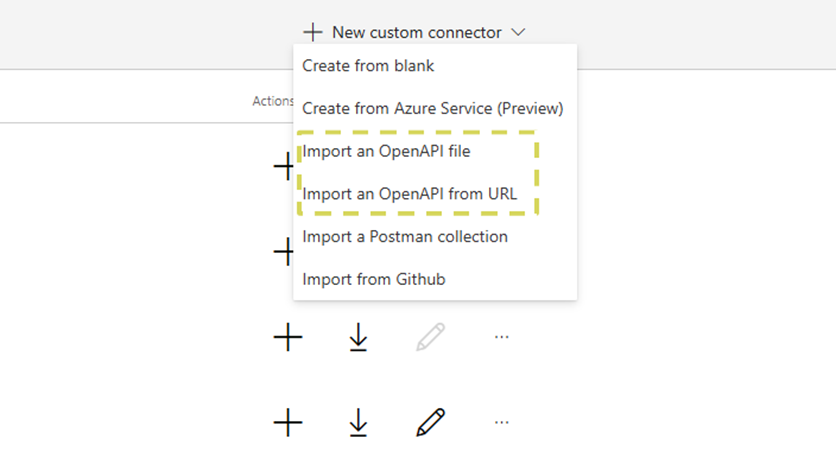
 Virus Scan APIs
 Content Disarm and Reconstruction APIs
 Spam Detection APIs
 Document Conversion & Processing APIs
 Document AI APIs
 Natural Language Processing (NLP) APIs
 Optical Character Recognition (OCR) APIs
 Image and Face Recognition and Processing APIs