
|
| How to Summarize and Watermark Contracts in Power Automate |
| 6/29/2026 - Brian O'Neill |
Contract review workflows move at the speed of their slowest step. In many organizations, it’s when a contract arrives in a shared folder and becomes the responsibility of a contract reviewer. The contract sits there until a reviewer can find enough time to open it, skim its contents, and decide how urgently it needs attention from the team. Supplementing that step with a simple automated workflow can speed up the process dramatically. Using the Cloudmersive Document AI and PDF connectors in Power Automate, we can build a flow that automatically generates an AI summary of an incoming contract and stamps it with an “UNDER REVIEW” watermark the moment it arrives. This way, reviewers have the context they need automatically before they open the document, and the document is clearly marked as in-progress before it has a chance to circulate prematurely. Setting up the Document AI and PDF connectors in Power AutomateBefore we start building our flow, we’ll need both the Cloudmersive Document AI and PDF connectors available in our Power Automate environment. Both are available as premium connectors and can be connected using a Cloudmersive API key. If you don’t have an API key currently, you can get a low-volume API key for testing (800 API calls/month) by creating a free account on the Cloudmersive website. This will be enough to create a quick test/POC showing both connectors’ capabilities with short example files.
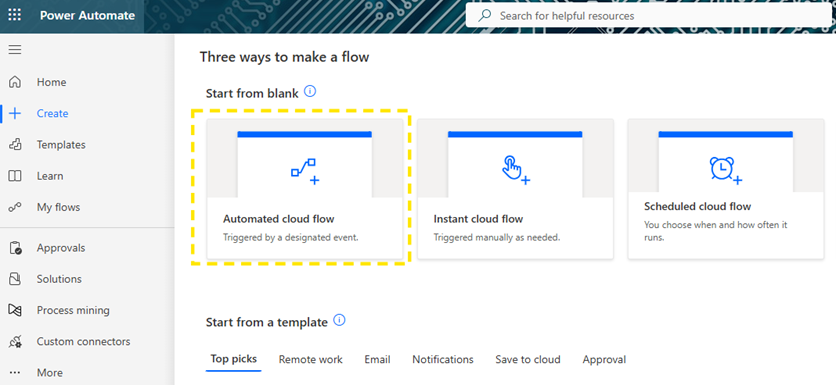
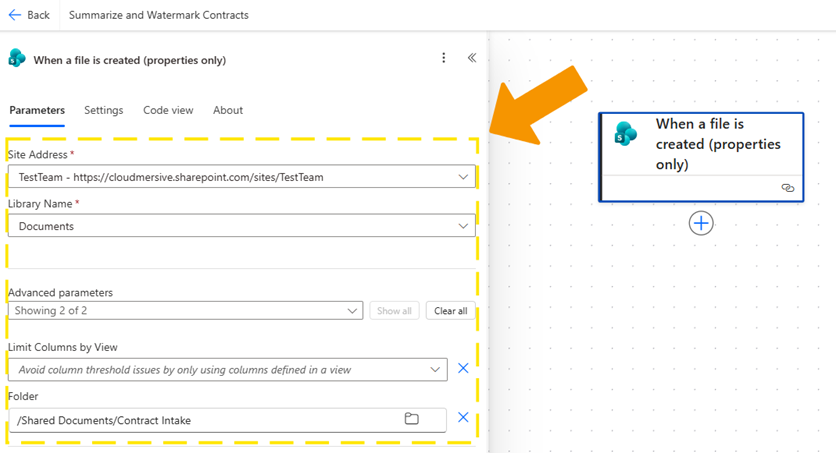
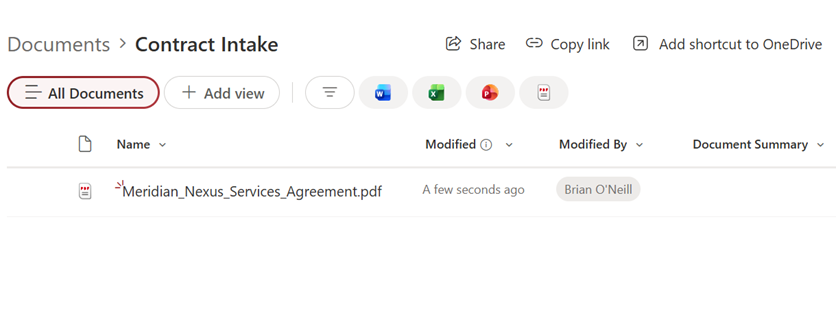
Building the contract review flowWe’ll build an Automated Cloud Flow that triggers when a new file arrives in a designated “Contract Intake” folder in SharePoint.
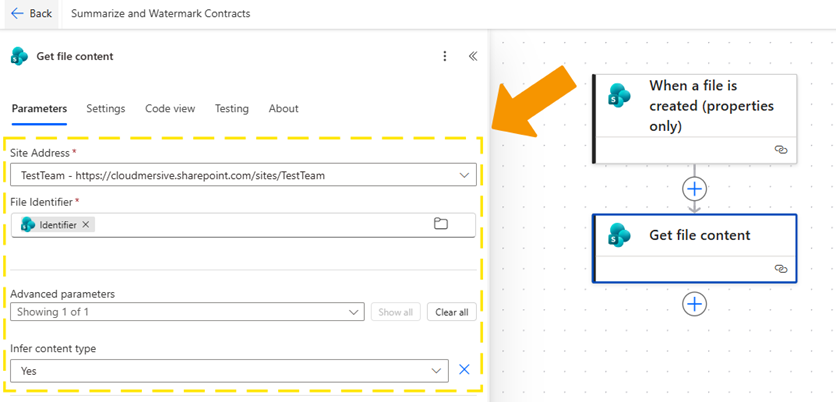
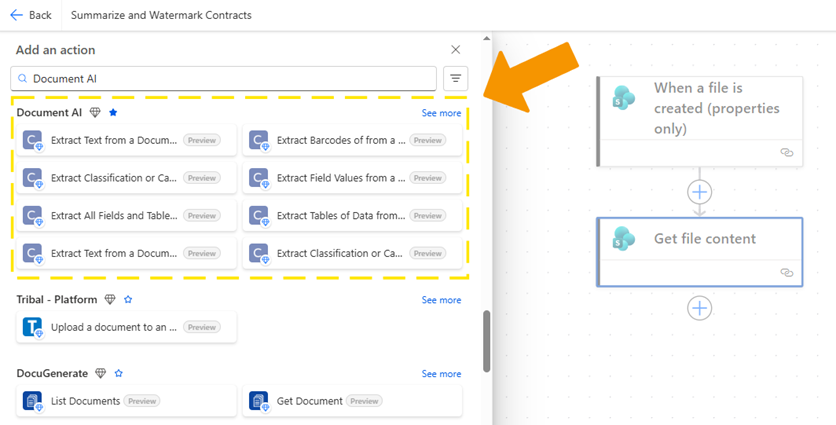
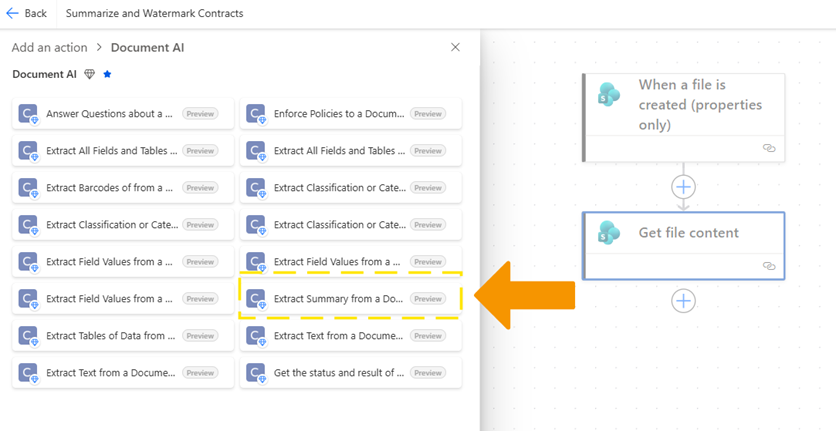
Once our trigger is configured, we’ll add a SharePoint: Get file content action to retrieve the file bytes from the newly arrived document. We’ll use the file identifier from the trigger output to specify which file to retrieve. Extracting an AI-generated contract summaryWith our file content in hand, we’ll add a new action and navigate to the Cloudmersive Document AI connector. From the actions list, we’ll select Extract Summary from a Document using AI.
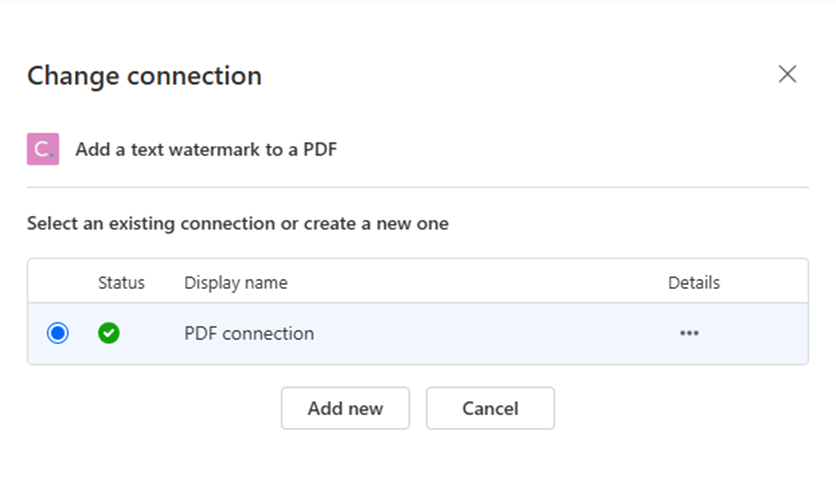
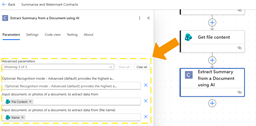
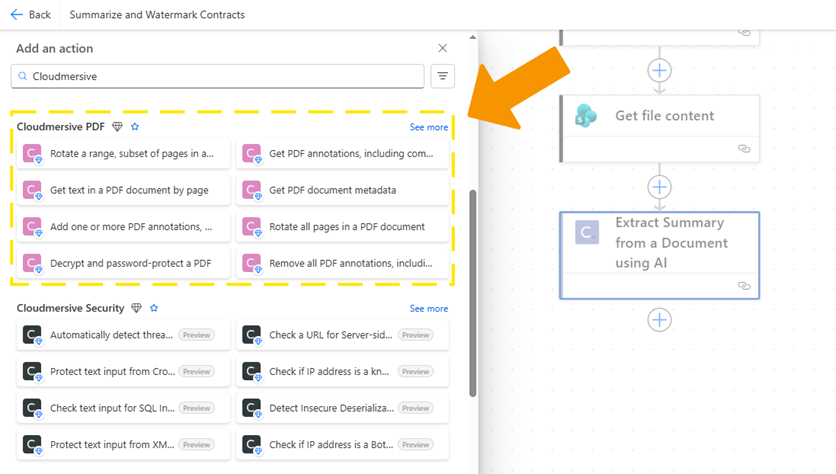
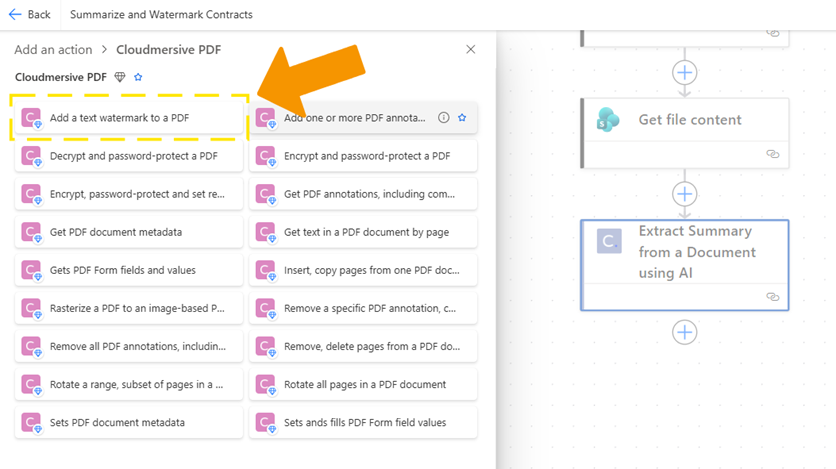
We’ll configure this action by passing in the file content bytes from our Get file content step. We’ll leave the When this action runs, it returns a Adding a watermark to mark the contract as under reviewNext, we’ll add a new action from the Cloudmersive PDF connector. From the actions list, we’ll select Add a text watermark to a PDF.
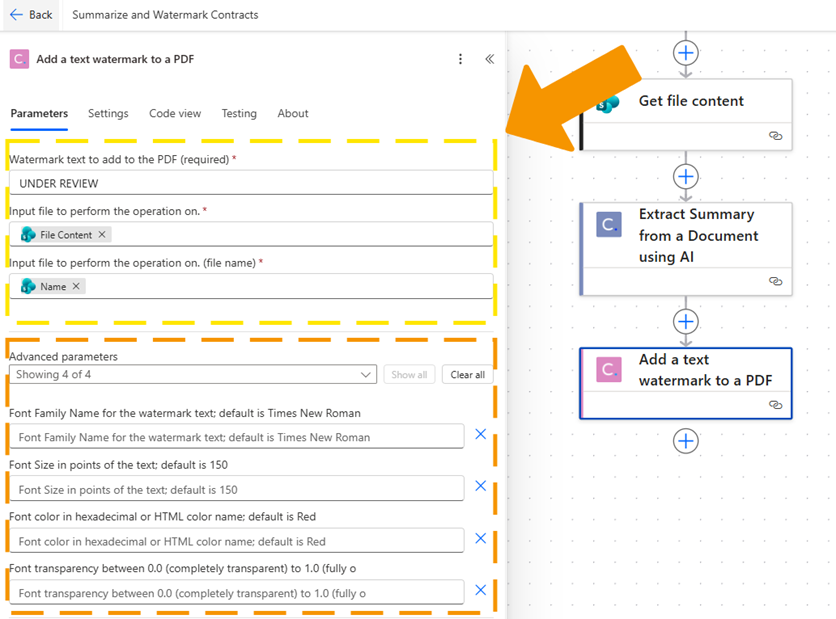
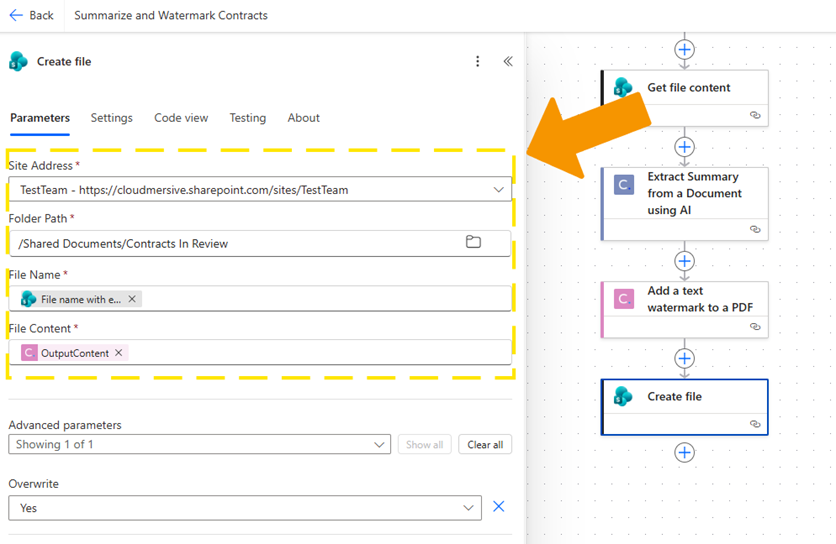
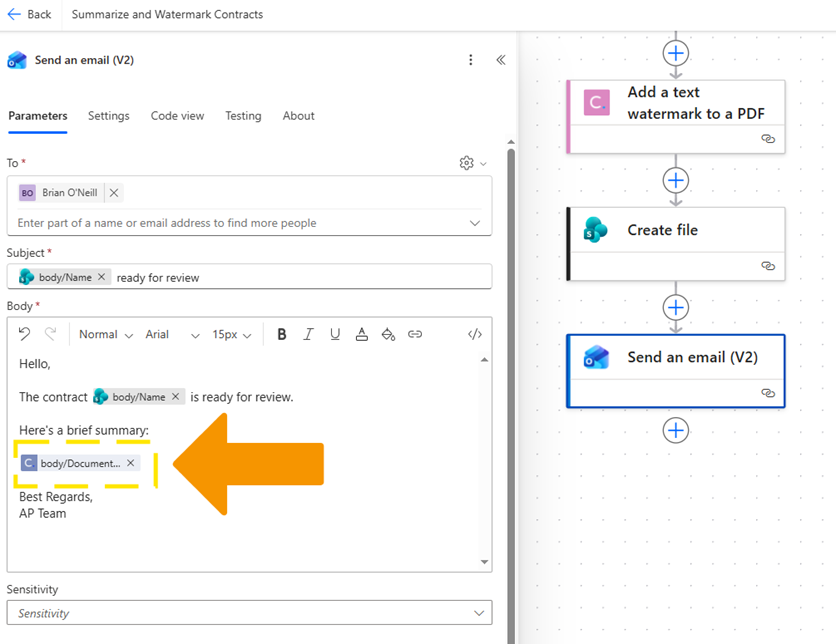
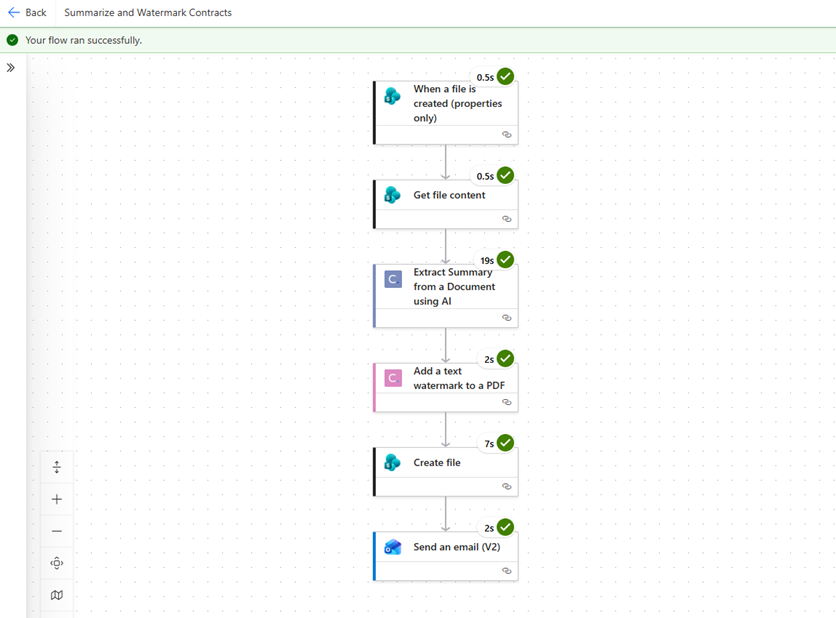
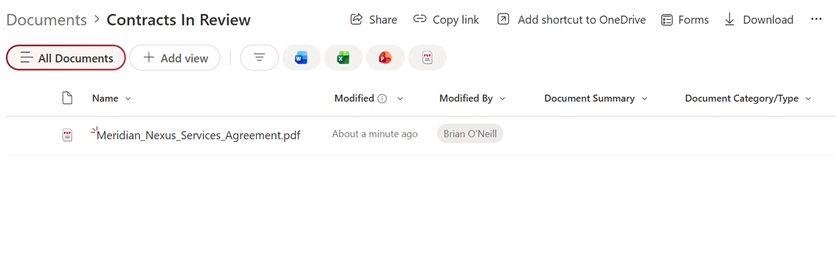
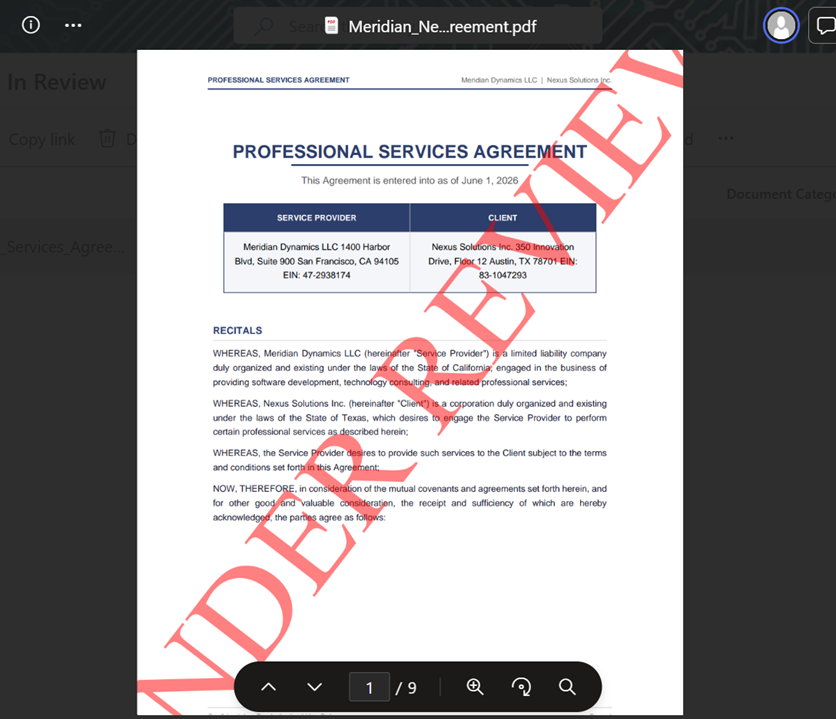
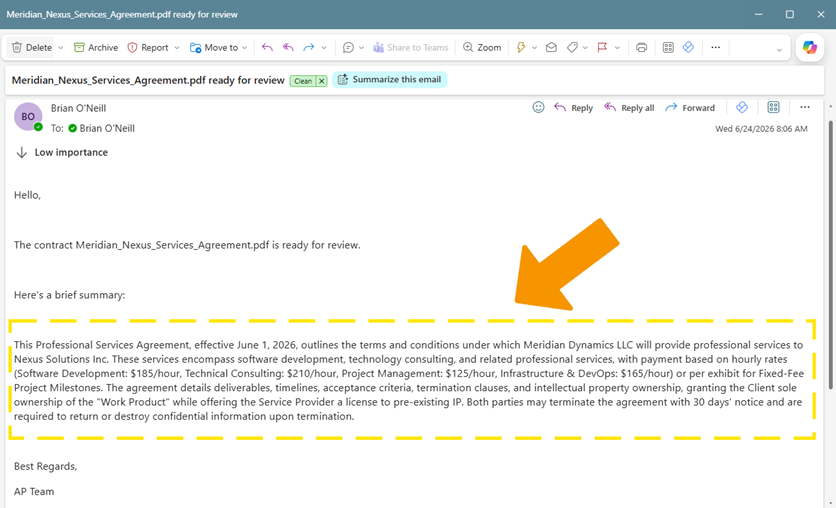
We’ll configure this action with the following parameters: for The output of this action is a watermarked PDF file. It’s just the original contract with the “UNDER REVIEW” text stamp applied across each page. Storing the watermarked contract and notifying the reviewerWe’ll now add our SharePoint: Create file action to store the watermarked PDF back in our document library. We’ll save it to a separate “Contracts In Review” folder to keep it separated from the original intake location. Finally, we’ll add an Outlook: Send an email action to notify the assigned reviewer. We’ll populate the email body with the Saving and testing the flowAt this point, we’ll save our flow and run a test using an example contract. For our test, we’ll upload a standard vendor services agreement to our intake folder. When our flow finishes running, we’ll first look at the flow run history to make sure each step completed successfully. After that, we’ll check our output folder to confirm the watermarked PDF was created correctly, and we’ll review the email notification to confirm the summary arrived in the “reviewer’s” inbox.
If we take a look at the ConclusionIn this article, we learned how to build a Power Automate flow that automatically summarizes and watermarks contracts using the Cloudmersive Document AI and PDF connectors. The result is a flow that closes the gap between document arrival and reviewer action. Every contract that lands in the intake folder immediately gets a plain-language summary and a clear in-progress marker, so reviewers have the context they need the moment they’re notified. With this flow running in the background, documents won’t sit in limbo waiting for someone to triage them. For expert advice on using Cloudmersive connectors for enterprise-scale workflows in Power Automate, please reach out to a Cloudmersive representative. |
Sign Up Now or 

 Technical Articles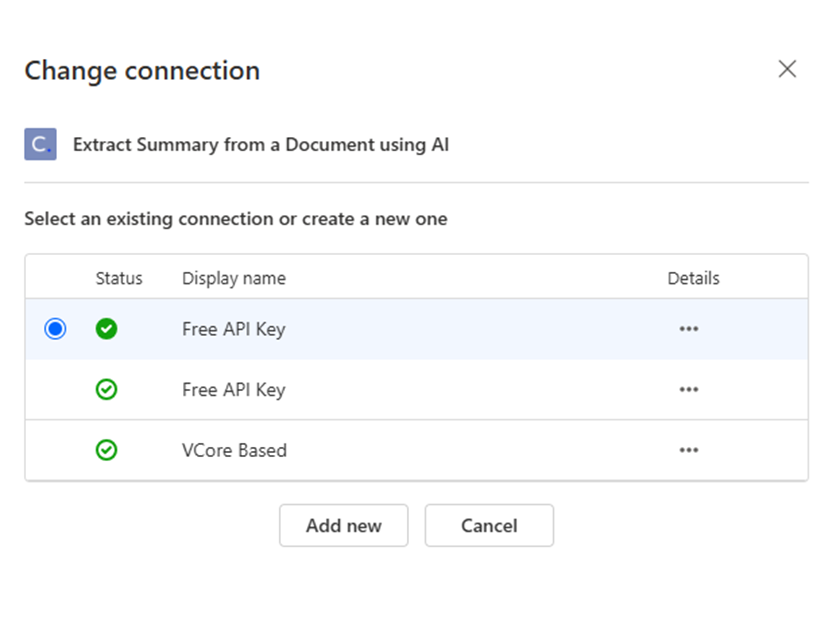
 Virus Scan APIs
 Content Disarm and Reconstruction APIs
 Spam Detection APIs
 Document Conversion & Processing APIs
 Document AI APIs
 Natural Language Processing (NLP) APIs
 Optical Character Recognition (OCR) APIs
 Image and Face Recognition and Processing APIs