
|
| How to Intelligently Split Multi-Document Files Using AI in Python |
| 4/21/2026 - Brian O'Neill |
When enterprises process large volumes of physical paperwork (think stacks of scanned ID cards or mixed document packets) they often end up digitizing everything into a single file. The result? A sprawling, multi-document PDF that technically contains all the right information, but in a format that’s completely unusable for any downstream automation. Someone (or something) still has to figure out where one document ends and the next begins. Manually splitting these files is tedious, and it doesn’t scale. It’s also very error prone, which can quickly cascade into mountains of new problems down the road. Building that logic yourself in code means wrestling with things like layout heuristics and header detection, which are no fun at all. There’s also the problem of visual boundary recognition, which is a genuinely difficult issue that has nothing to do with whatever your application is actually supposed to do. Splitting Documents with Cloudmersive Document AIThat’s the exact problem the Cloudmersive AI Document Splitting AI is built to solve. It accepts a multi-document file as input, analyzes its contents using advanced AI, and then returns each identified sub-document as its own discrete chunk, complete with page range metadata and PDF bytes you can work with directly. It detects boundaries based on visual content and document-type recognition, which means it handles messy, real-world input far better than any rule-based approach could. It’s built for enterprise environments, so it handles a variety of file formats ranging from DOCX and PDF to XLSX, PPTX, JPG, PNG, and WEBP. Implementing the AI Document Splitting API in PythonIn this article, we’ll walk through an example API call using Python (3) in Google Colab, and we’ll walk through what the response looks like. Code examples are pulled directly from the Cloudmersive swagger page, which you can find linked here. To follow along with this walkthrough, you’ll need a Cloudmersive API key, which you can get by signing up for an account on our website. You can get a free API key with 800 API calls/month and no commitments, and that’s more than enough to work through this example. Just bear in mind that this API consumes 100 calls per page in the input document, so keep that in mind when testing with larger files. Installing the SDKFirst things first, let’s get the SDK installed. We can run the below command in our terminal: Importing ResourcesWith SDK installation out of the way, we’ll pull in the resources we need: Note that we don't actually need the Structuring the RequestThe Document Splitting API uses a multipart form data request, so the structure looks a little different from a typical Cloudmersive API call. We’ll start from the raw example code on the Swagger page: We have a few things to fill in before this is functional. Most obviously, we’ll need to replace the First, let’s handle the API key and host configuration: For our input file, we’ll use a sample multi-document file containing a few different file types together (specifically an invoice, a contract, and a form). Here’s the completed request: Interpreting the API responseAfter a moment, the API will return a response structured like the below example: The top-level
So if the original file contained three distinct documents, you’d get three entries in Here's an example response from the tree-page multi-document file used in this example (file byte strings are shortened for readability): ConclusionThe Cloudmersive AI Document Splitting API takes a difficult document processing problem and reduces it to a single API call. Whether you’re dealing with mixed intake forms or batched scanned records, plugging this into a Python application is a low-lift way to unlock reliable, AI-driven document boundary detection without building any of that logic yourself. If you want guidance on fitting this API into a larger document processing pipeline, we encourage you to reach out to the Cloudmersive sales team for expert advice. |
Sign Up Now or 

 Technical Articles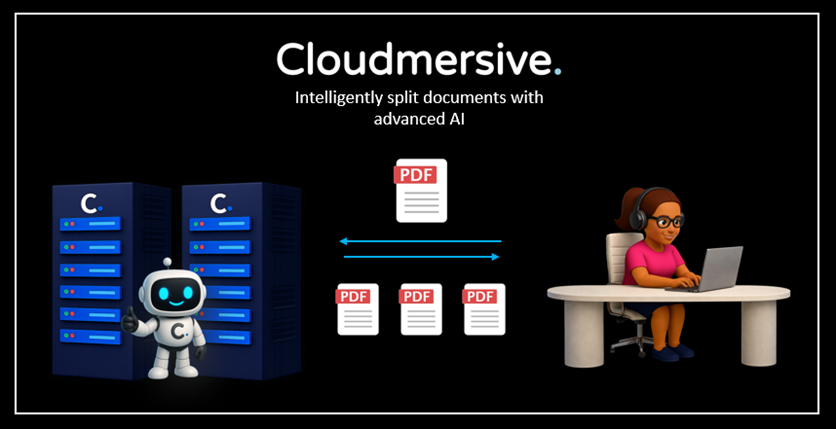
 Virus Scan APIs
 Content Disarm and Reconstruction APIs
 Spam Detection APIs
 Document Conversion & Processing APIs
 Document AI APIs
 Natural Language Processing (NLP) APIs
 Optical Character Recognition (OCR) APIs
 Image and Face Recognition and Processing APIs