Enterprises deal with a huge variety of incoming documents on any given day. An accounts payable team, for example, might receive invoices from dozens of vendors alongside related documents like expense receipts, tax forms, and contracts, and all of those might land in the same box. Before any of that content can be processed (by people OR automated workflows), someone has to figure what each document actually is.
Manual classification obviously doesn’t hold up at scale (this isn’t the 1980’s) and building your own classification solution is expensive. That entails training models, managing infrastructure, and solving a problem that exists well outside your core product. Most enterprise teams that take on this kind of project end up with a backlog or a brittle script (or sometimes both).
Classifying Documents with Cloudmersive Document AI
The Cloudmersive AI Document Classification API offers a cleaner path to solving this problem. IT takes a document as input, runs it through an advanced AI model, and returns a plain-language classification alongside a confidence score.
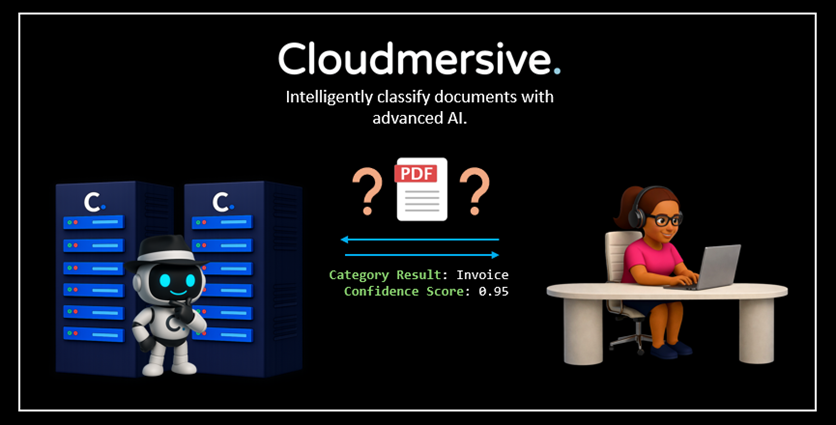
You can supply your own category definitions to tailor it to a specific workflow (e.g., “Invoices”, “Receipts”, “Tax Forms”, and “Contracts” for the accounts payable team), or let it classify freely against a broad range of common document types (the former option is recommended). A wide range of common input document formats are supported, including standard office formats like DOCX, PDF, XLSX, and PPTX, as well as image formats like JPG, PNG, and WEBP (OCR is built into the model).
Building a Real Request in Python
In this walkthrough, we’ll build an example API call in Python, and we’ll use Google Colab (Python 3) as a staging ground to show real configured code examples and a real API response. Code examples come directly from the Cloudmersive Swagger Page (API Console), which you can find here.
As a quick note, you’ll need a Cloudmersive API key if you want to implement and run code as you follow along. Creating a free account on the Cloudmersive website will give you a limit of 800 API calls per month at no cost, with no commitments required. Document AI typically consumes 100 API calls per page, so factor that in when choosing test documents for your workflow.
Installing the SDK
The first thing we’ll do is install the Document AI SDK. We can simply run the below pip command in our terminal:
pip install cloudmersive-documentai-api-client
Importing Resources
Now we’ll bring in the resources we need to build our API request. These are pre-formatted for our convenience (as with the rest of the code we’ll use in this walkthrough):
from __future__ import print_function
import time
import base64
import cloudmersive_documentai_api_client
from cloudmersive_documentai_api_client.rest import ApiException
from pprint import pprint
Note that we've included the base64 library in addition to the default imports, as it will be necessary to base64 encode files in your request.
Structuring the Request
Raw example code from the Swagger page gives us a solid starting point to build our request from. That’s linked in this paragraph, and also available to be directly copied below:
# Configure API key authorization: Apikey
configuration = cloudmersive_documentai_api_client.Configuration()
configuration.api_key['Apikey'] = 'YOUR_API_KEY'


# create an instance of the API class
api_instance = cloudmersive_documentai_api_client.ExtractApi(cloudmersive_documentai_api_client.ApiClient(configuration))
recognition_mode = 'recognition_mode_example' # str | Optional; Recognition mode - Advanced (default) provides the highest accuracy but slower speed, while Normal provides faster response but lower accuracy for low quality images (optional)
body = cloudmersive_documentai_api_client.AdvancedExtractClassificationRequest() # AdvancedExtractClassificationRequest | Input request to perform the classification on (optional)

try:
    # Extract Classification or Category from a Document using Advanced AI
    api_response = api_instance.extract_classification_advanced(recognition_mode=recognition_mode, body=body)
    pprint(api_response)
except ApiException as e:
    print("Exception when calling ExtractApi->extract_classification_advanced: %s\n" % e)
Before this code is functional, we first need to swap in a real API key and fill out the request body. Let’s handle the configuration here:
configuration.api_key['Apikey'] = userdata.get('freekey')
configuration.host = "api.cloudmersive.com"
Note that we’ve manually set the host to ”api.cloudmersive.com”, which is the default for free-tier subscriptions like the one we’re using in this walkthrough.
Now for the body. The request model exposes a handful of useful parameters, and we should understand what each one does before we start setting values in our request.
InputFile is the base64-encoded document we want to classify. Categories is an optional array that lets us define our own classification targets. Each entry here takes a CategoryName and CategoryDescription, and the API will evaluate the document against that list rather than classifying freely. If we leave this empty, the model will use its own judgement about document type.
PreProcessing and ResultCrossCheck are optional controls for image quality handling and result validation respectively. MaximumPagesProcessed caps how many pages the API evaluates, which is useful for keeping call consumption predictable when dealing with long documents. RotateImageDegrees handles cases where scanned inputs (or handheld document photos) arrive at our workflow rotated to some unfavorable degree.
Much like the [Intelligent Document Splitting API](How to Intelligently Split Multi-Document Files Using AI in Python - Cloudmersive APIs), this endpoint also exposes a recognitionMode header. Advanced is the default and gives the highest accuracy, while Normal trades off some accuracy for faster request speed. Choosing the latter can be a reasonable choice if we know we’re dealing with high volumes of clean, legible input.
For our example, we’ll put on our accounts payable hat and classify an invoice against some of the example categories we mentioned earlier. Here’s a completed request with that in mind:
from google.colab import userdata
import base64
import cloudmersive_documentai_api_client
from cloudmersive_documentai_api_client.rest import ApiException
from pprint import pprint

# Configure API key authorization: Apikey
configuration = cloudmersive_documentai_api_client.Configuration()
configuration.api_key['Apikey'] = userdata.get('freekey')
configuration.host = "api.cloudmersive.com"

# create an instance of the API class
api_instance = cloudmersive_documentai_api_client.ExtractApi(cloudmersive_documentai_api_client.ApiClient(configuration))
recognition_mode = 'recognition_mode_example' # str | Optional; Recognition mode - Advanced (default) provides the highest accuracy but slower speed, while Normal provides faster response but lower accuracy for low quality images (optional)
body = cloudmersive_documentai_api_client.AdvancedExtractClassificationRequest() # AdvancedExtractClassificationRequest | Input request to perform the classification on (optional)

with open("Invoice Example 2.PNG", "rb") as f:
    input_file_b64 = base64.b64encode(f.read()).decode("utf-8")

category1 = cloudmersive_documentai_api_client.DocumentCategories()
category1.category_name = "Invoice"
category1.category_description = "A request for payment from a seller to a buyer for goods or services rendered."

category2 = cloudmersive_documentai_api_client.DocumentCategories()
category2.category_name = "Receipt"
category2.category_description = "Confirmation that a payment has been made."

category3 = cloudmersive_documentai_api_client.DocumentCategories()
category3.category_name = "Tax Form"
category3.category_description = "An official document used to report financial information to a government tax authority."

category4 = cloudmersive_documentai_api_client.DocumentCategories()
category4.category_name = "Contract"
category4.category_description = "A legally binding agreement between two or more parties."

body = cloudmersive_documentai_api_client.AdvancedExtractClassificationRequest(
    input_file=input_file_b64,
    categories=[category1, category2, category3, category4],
    preprocessing="Auto",
    maximum_pages_processed=10,
    rotate_image_degrees=0
)


try:
    # Extract Classification or Category from a Document using Advanced AI
    api_response = api_instance.extract_classification_advanced(recognition_mode=recognition_mode, body=body)
    pprint(api_response)
except ApiException as e:
    print("Exception when calling ExtractApi->extract_classification_advanced: %s\n" % e)
Interpreting our Response
The Classification API should respond quickly with a compact result. Here’s the result of this walkthrough’s example input:
{
    'confidence_score': 0.95,
    'document_category_result': 'Invoice',
    'successful': True
}
The response contains three fields: Successful, which confirms whether the request completed without error; DocumentCategoryResult, which is the plain-language classification the AI assigned; and ConfidenceScore, which is a numeric value reflecting how certain the model is about the classification it delivered.
That confidence score is particularly useful in practice. A high-confidence result can be routed automatically downstream without any human review, but a lower score should trigger a secondary check or a manual queue. That gives you a natural threshold for deciding how much automation to actually trust in a given workflow.
Conclusion
The Cloudmersive AI Document Classificaiton API makes it straightforward to add intelligent document routing to a Python application. Whether you’re sorting incoming vendor documents or validating form types before processing, a single API call is enough to get a reliable classification and confidence score to act on.
If you’re looking for help integrating this API into a broader document processing pipeline, please feel free to reach out to the Cloudmersive Sales team directly and they’ll be glad to assist you.



 Technical Articles
 Virus Scan APIs
 Content Disarm and Reconstruction APIs
 Spam Detection APIs
 Document Conversion & Processing APIs
 Document AI APIs
 Natural Language Processing (NLP) APIs
 Optical Character Recognition (OCR) APIs
 Image and Face Recognition and Processing APIs