
|
| How to Improve File Upload Security with Advanced Content Inspection |
| 9/25/2026 - Brian O'Neill |
When a document upload becomes an application riskAccepting uploaded files instantly exposes an application and its downstream workflows to dangerous content. If we’re building a document portal, we need to understand how file upload vulnerabilities create that risk, and why traditional malware checks alone leave considerable gaps in our application’s security profile. We’ll explore the concept of file upload vulnerabilities in this article, and we’ll demonstrate how to comprehensively protect a C#/.NET Core upload application with 360-Degree Content Protection. Setting the sceneImagine, for example, that our application is an insurance-claim portal where customers submit crucial supporting documents for review. It’s straightforward enough to expose “select file” and “upload” buttons for our application users with only a few lines of code, and it’s equally straightforward to send those files to storage or other workflows. These are far from our only considerations, however. Downstream of our application, customer documents might be previewed, converted to a new format, opened by an adjuster, or automatically processed to extract claim details. Our application needs to carefully consider that whole journey; receiving a file successfully is only the first step toward deciding whether that file belongs in sensitive workflows beyond our own. Understanding file upload vulnerabilitiesFollow the file to the software that processes itLet’s walk through the typical journey a file takes through our upload portal. An external user submits a document, the server receives it, and the application approves it for storage. Later, a person or service opens or processes the saved file. This last step might happen immediately in a preview generator, or it might happen days later during a claim review. Simply storing a file obviously doesn’t execute its contents. Rather, risk emerges when other software attempts to parse its structure, render its contents as a preview, extract an archive, or interpret some embedded instructions buried within the document (e.g., JavaScript or Macros). This is why security authorities consider file parsers and processing modules as upload-related attack surfaces – the upload portal left the door open, and that’s how the raccoons got in to raid the pantry. There’s a useful question we should always ask ourselves when assessing our portal’s risk: what interprets the incoming content first? If a preview service consumes the document before inspection, that service has already been exposed. If storage is the next stop after upload, the file’s risk is carried forward until another workflow encounters it later. Distinguishing vulnerabilities from malwareWhile the term malware explicitly refers to software (or code) designed to cause harm or perform unauthorized activity, a vulnerability refers to an exploitable weakness in software, configuration, or another security control. Malware is inherently malicious, while vulnerabilities are better thought of as chinks in the software chain that arise from errors in software development and maintenance. The latter can be exploited both unintentionally (e.g., with malformed files) or intentionally (e.g., with specially crafted malformed files). A crafted file can trigger a weakness in the software processing it, and an exploit might then provide a way to run malware – so the concepts certainly can overlap. But a document can also contain unwanted automation without exploiting software flaws. In the context of our insurance-claims portal, the practical question is whether files with possible exploit capabilities belong in our workflow at all. Understanding zero-day risk and possible outcomesA zero-day attack occurs when a threat actor intentionally decides to exploit a previously unknown software vulnerability. The zero-day exploit itself is the method or crafted input used to take advantage of that flaw – typically before a corrective path is available, or before that path has been applied to software through an update. Note that unfamiliar or unexpected files, new malware samples, or failed conversions don’t inherently establish a zero-day exploit, and not every unpatched vulnerability qualifies as one either. What we’re really concerned with in regards to zero-day attacks are outcomes. Implications vary depending on the exploit; some are much more severe than others. Here are a few of the most common exploit outcomes:
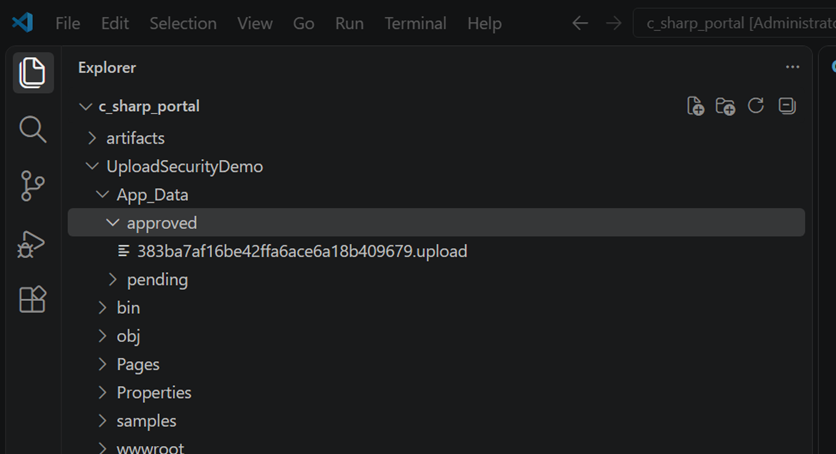
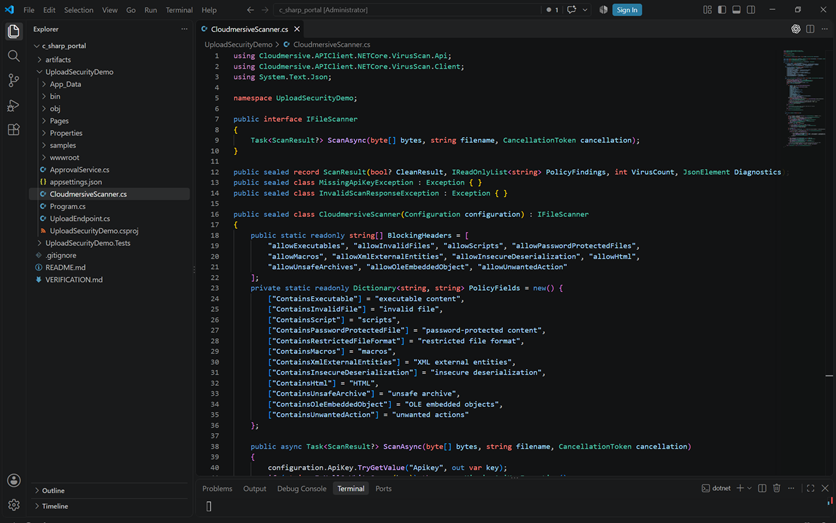
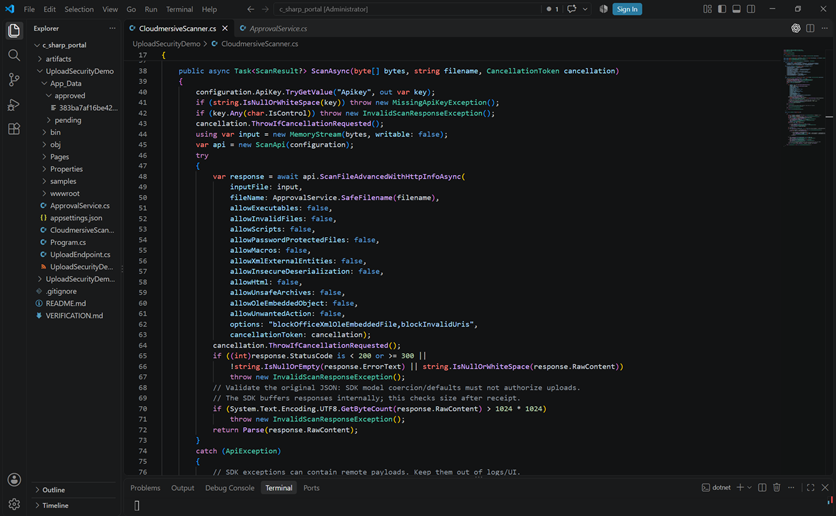
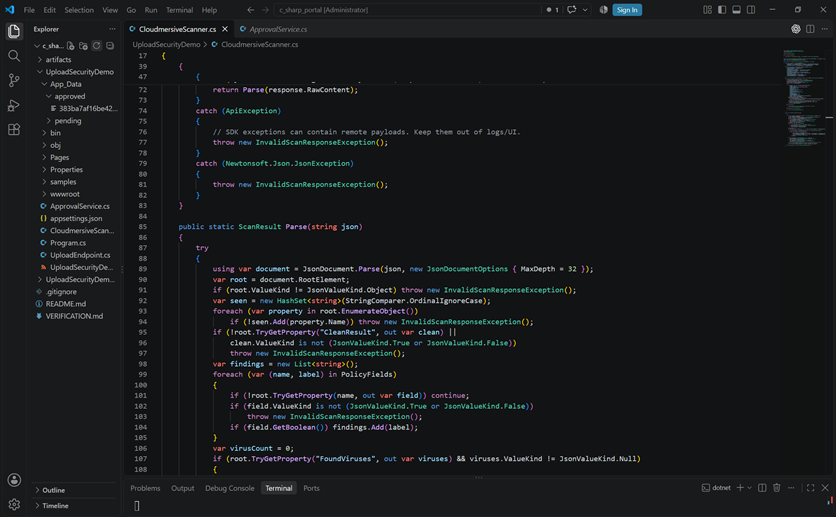
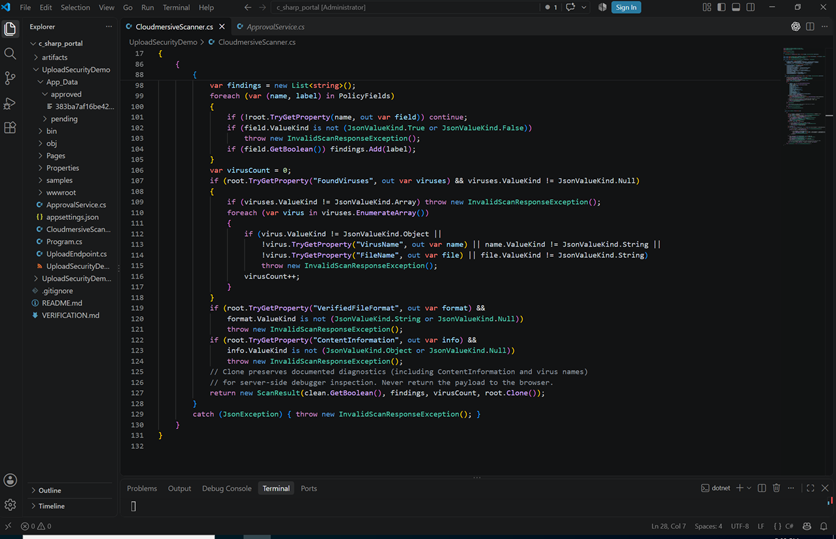
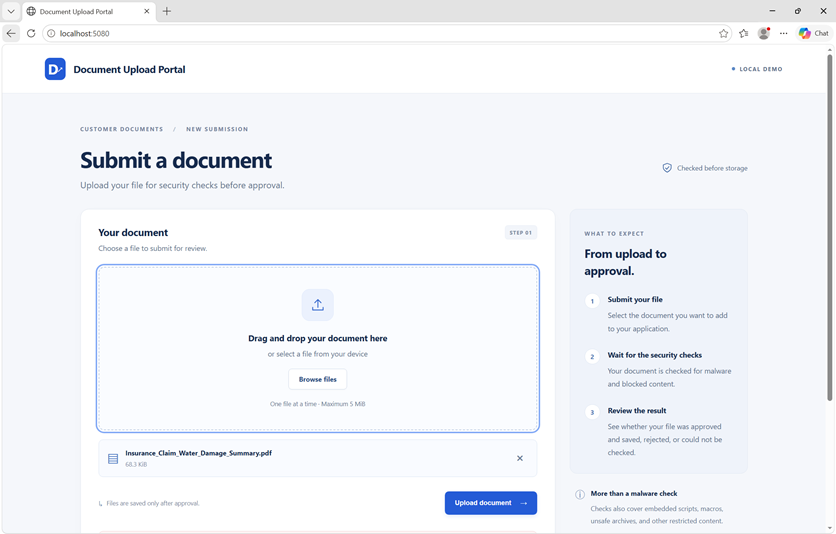
In the context of our insurance-claims example, a successful exploit could lead to stalled document reviews and/or an expanding backlog, putting increasing pressure on the business and creating large-scale user dissatisfaction. In a broader upload portal context, if an exploited service has access to sensitive records, the consequences could extend as far as data exposure or unauthorized data changes. Three important content categories to considerFor upload security, it helps to separate risky content into a few practical categories so we can decide what to reject or inspect more closely. Invalid or malformed structures. A file can be damaged, or it can contain content inconsistent with its claimed format. As we’ve learned, it can be deliberately crafted to perform some out-of-bounds action – like exercising an unexpected parser path. Some inputs like these simply fail validation; others interact with weaknesses in receiving software. The point is that familiar file extensions alone don’t unilaterally establish that a document’s contents are valid. Embedded scripts and macros. Document macros and PDF JavaScript most often support legitimate functionality, but they may also introduce behavior our workflow doesn’t need. What happens when files like these arrive depends largely on the host application’s capabilities and security settings. Unsafe archives: A small compressed upload is just what it sounds like: compressed data. Small archives can expand excessively, and deeply nested content can exhaust processing resources. The size of an uploaded archive only tells one piece of its story. Of course, these features aren’t automatically malware or zero-day exploits – they’re just a few of the usual suspects in vulnerability exploits. Their acceptability in an upload context depends mostly on the workflow, its policies, and the software receiving them. Our insurance-claims portal needs supporting evidence; it may have no good reason to accept embedded automation or archives, and that’s important to bear in mind. Inspecting before approvalThe possibility of malware and vulnerability exploits means we need to inspect content before approving it for storage or downstream use. Established malware strains are typically detected through signature matching, while vulnerability exploits are mitigated through structural checks and restrictions on unnecessary file capabilities The advantage of Cloudmersive’s Advanced Virus Scan endpoint is that it handles both checks simultaneously. That’s what 360-Degree Content Protection means: protecting against the full spectrum of upload threats. Through a simple POST request in our C# application, we can check files for tens of millions of known malware signatures and freely restrict other content threats based entirely on our own risk appetite. Inspecting uploaded files in a C# document portalIt’s time to bring this back to our claims portal. The example is a simple localhost ASP.NET Core application: customers select a document from their local file system, submit the document, and then wait for an approval decision. “Approval” in this example refers to file safety; we’re checking files with 360-Degree Content Protection to make sure they aren’t malformed or hiding malware. In the background, the server sends the file to the Cloudmersive Advanced Scan endpoint before making approved files available in a private folder. The App_Data/approved folder we’re using represents the document repository or object store feeding a real claims workflow. In a real-world production scenario, approval would make the document eligible for insurance-related workflows like preview generation, data extraction, or review by an adjuster. This demo stops at storage; opening and processing submitted documents is ultimately outside the scope of what we’re trying to accomplish here. If we wanted to, we could also model intake with private quarantine storage and a background scanning worker. In that case, the same boundary applies: downstream services consume only approved files. Keeping every upload off-disk until scanning finishes is a choice we’ve made in this small demonstration; it’s not a requirement nor a recommendation for every production design. Connecting the upload handler to the Advanced Scan APIThe browser posts one file to /upload and displays an “Uploading & checking your file” state. UploadEndpoint.cs uses MultipartReader to read the content into a bounded MemoryStream ,with a default limit of 5 MiB. It passes those bytes to ApprovalService, which requests inspection through CloudmersiveScanner. Most importantly, we’re using the official Cloudmersive.APIClient.NETCore.VirusScan package (version 4.0.0 as of the time this article is published). The scanner wraps the bytes in a read-only stream and creates ScanApi with a server-side configuration. The API key of course never enters browser code; it comes from a secret stored on the server. Here’s the application’s Advanced Scan call from CloudmersiveScanner.cs. Each named argument makes the requested policy explicit: For our threat modle, the central settings are
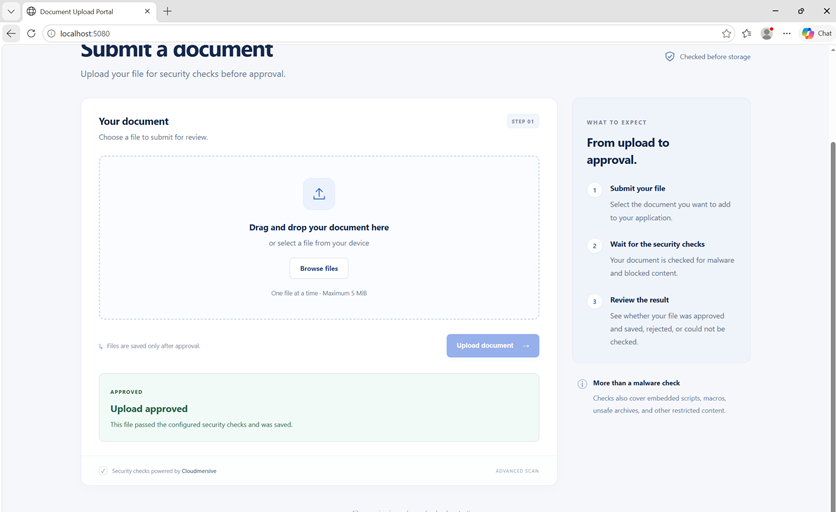
Keeping risky content out of the claims workflowIf inspection flags an invalid document, rejecting that document keeps it away from the previewer or converted that would otherwise attempt to parse it. Blocking scripts and macros removes capabilities that a supporting claim document clearly doesn’t need. Blocking unsafe archives helps keep hazardous extraction workloads out of later processing. None of these decisions requires us to label the file confirmed exploit - we’re just taking the most stringent possible approach to security, and downstream workflows will be thankful for it. Malware findings follow the same rejection path, albeit with a different explanation. The application reads policy indicators separately from FoundViruses. A reported macro can produce “Content policy: macros”, while a malware finding without a policy indicator receives a malware-specificmessage. If both appear, this portal prioritizes the policy message, so the server-side diagnostics remain useful for understanding the complete result. This is how inspection reduces exposure: files that fail configured checks never enter approved collection consumed by the business workflow. Showing the approval boundary in actionIn an effort to make demonstrating as simple and easy-to-follow as possible, we’ve built this example portal to show more post-upload feedback to the user than real-world portals would display. A green message helps us identify a saved file, while a red message tells us the submission stayed out of approved storage. Our first upload is a legitimate PDF - the type we would certainly expect to see passing through an insurance claims portal. The upload is accepted, and the accepted file lives in our mock storage folder.
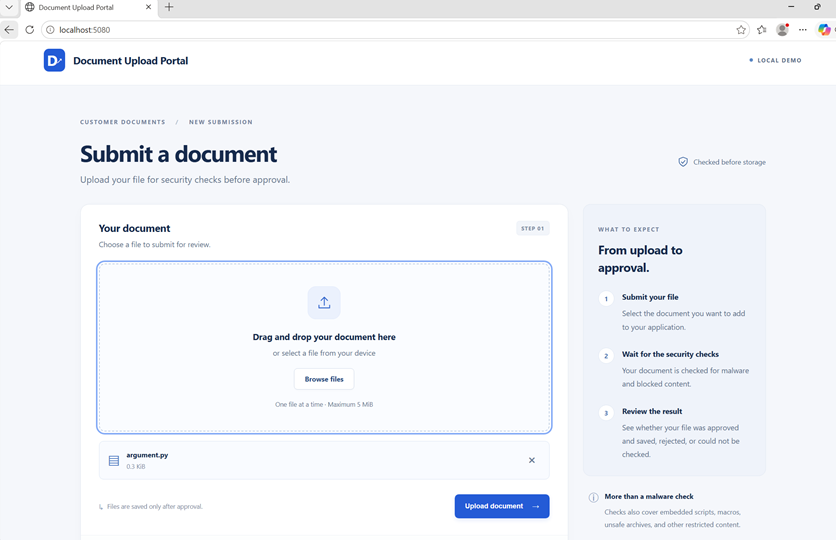
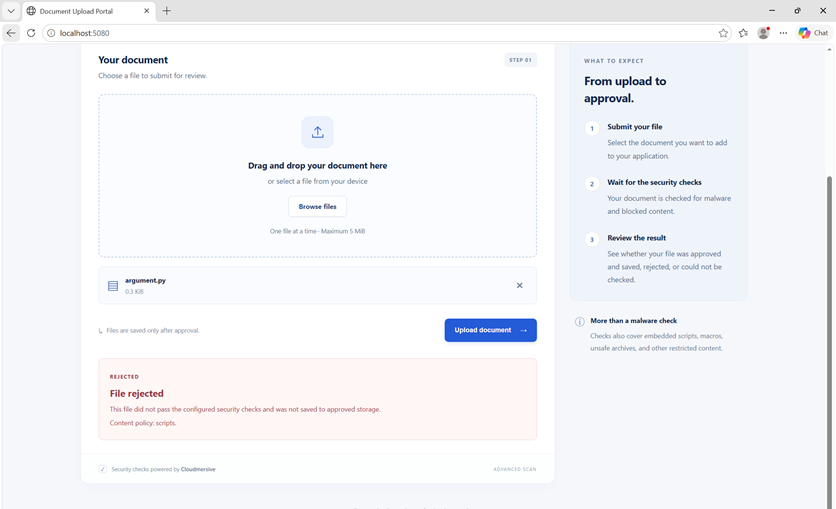
Our second upload is a Python script. We would never under any circumstances accept this type of upload through a claims portal. The script signature is identified, and the file is rejected.
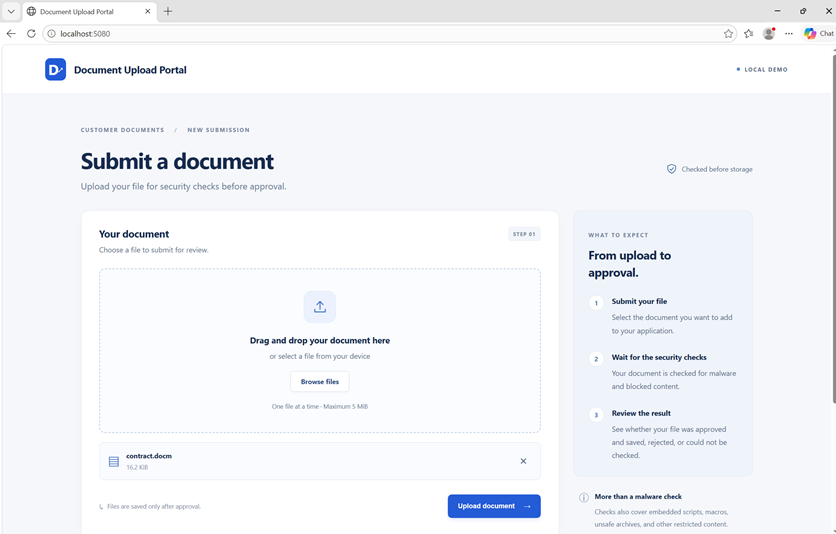
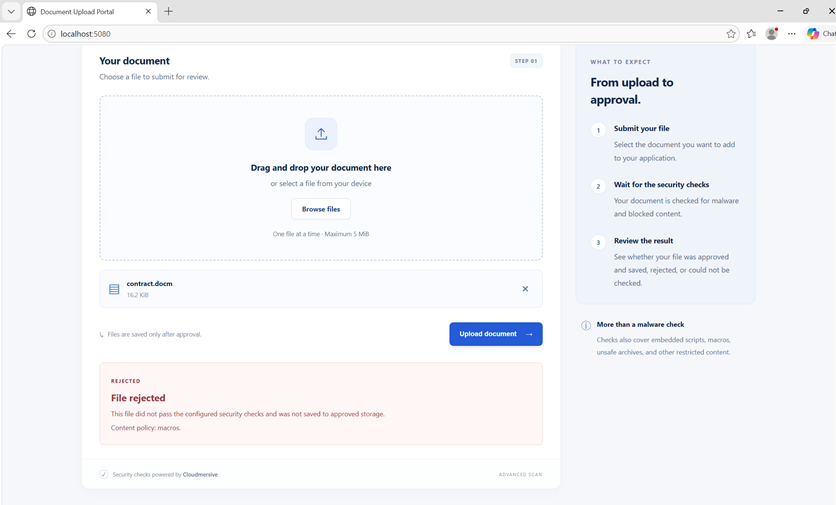
Our third upload is a macro-enabled Word document (.DOCM file). This is one of the most dangerous types of uploads we can expect to see from threat actors targeting our system. If malicious macros make it to storage, it's only a matter of time before someone opens the document and executes code in their environment. 360-Degree Content Protection rejects it outright based on our anti-macro threat rule.
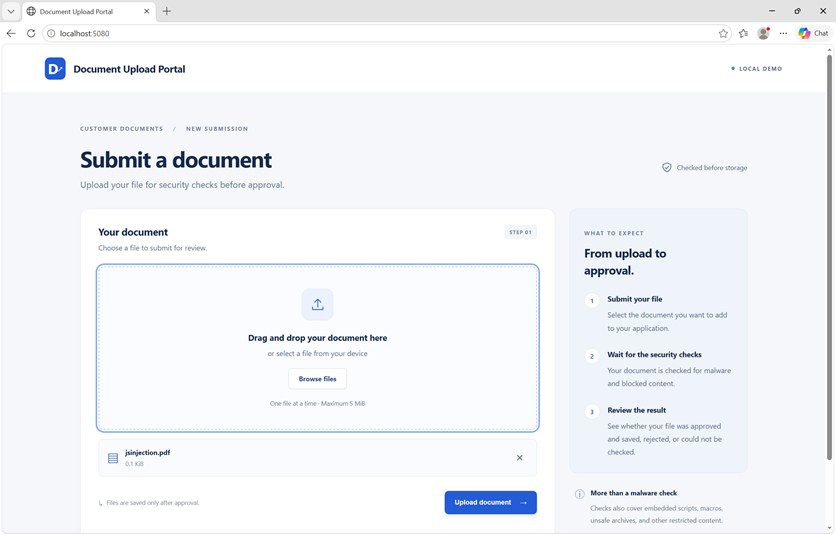
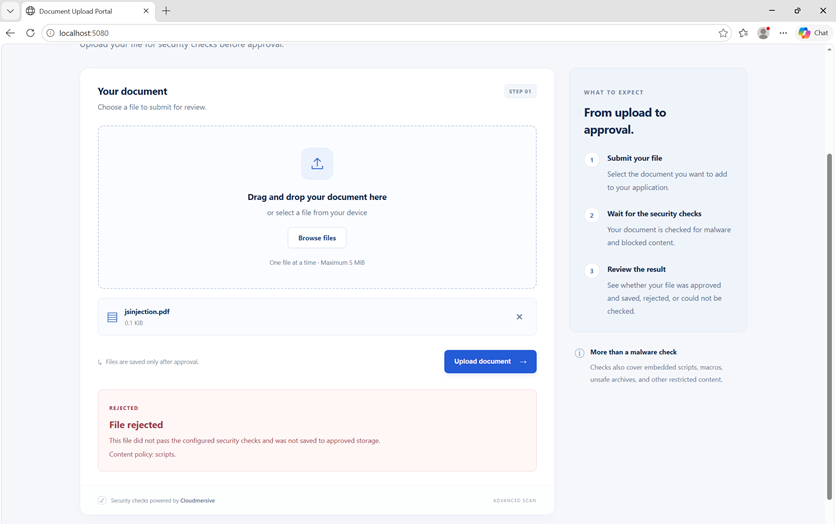
Our fourth and final upload is a PDF with a JavaScript injection. This kind of PDF is very commonly used to exploit vulnerabilities in PDF parsers. In the context of our claims portal, there's no reason users should be uploading PDFs with JavaScript. The code might be a malicious injection or leftover code from a dynamic form submission; either way, we don't want that anywhere near our backend. Our anti-script threat rule takes that down in an instant.
ConclusionUploaded files can carry risks into the software that processes them later. Content and structure checks complement malware detection by narrowing what reaches that software. Our example C# portal uses Cloudmersive 360-Degree Content Protection to identify threats and make inspection consequential: only a completed, passing result permits saving files for downstream use. To explore how the Advanced Scan API could fit your document workflow, contact a Cloudmersive expert for guidance on policies and integration. |
Sign Up Now or 

 Technical Articles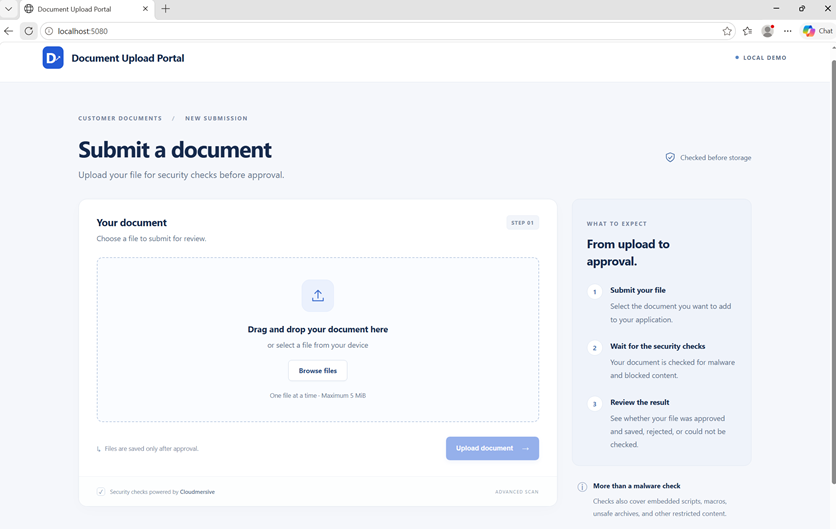
 Virus Scan APIs
 Content Disarm and Reconstruction APIs
 Spam Detection APIs
 Document Conversion & Processing APIs
 Document AI APIs
 Natural Language Processing (NLP) APIs
 Optical Character Recognition (OCR) APIs
 Image and Face Recognition and Processing APIs